

Visitor Host Approval Enhancements
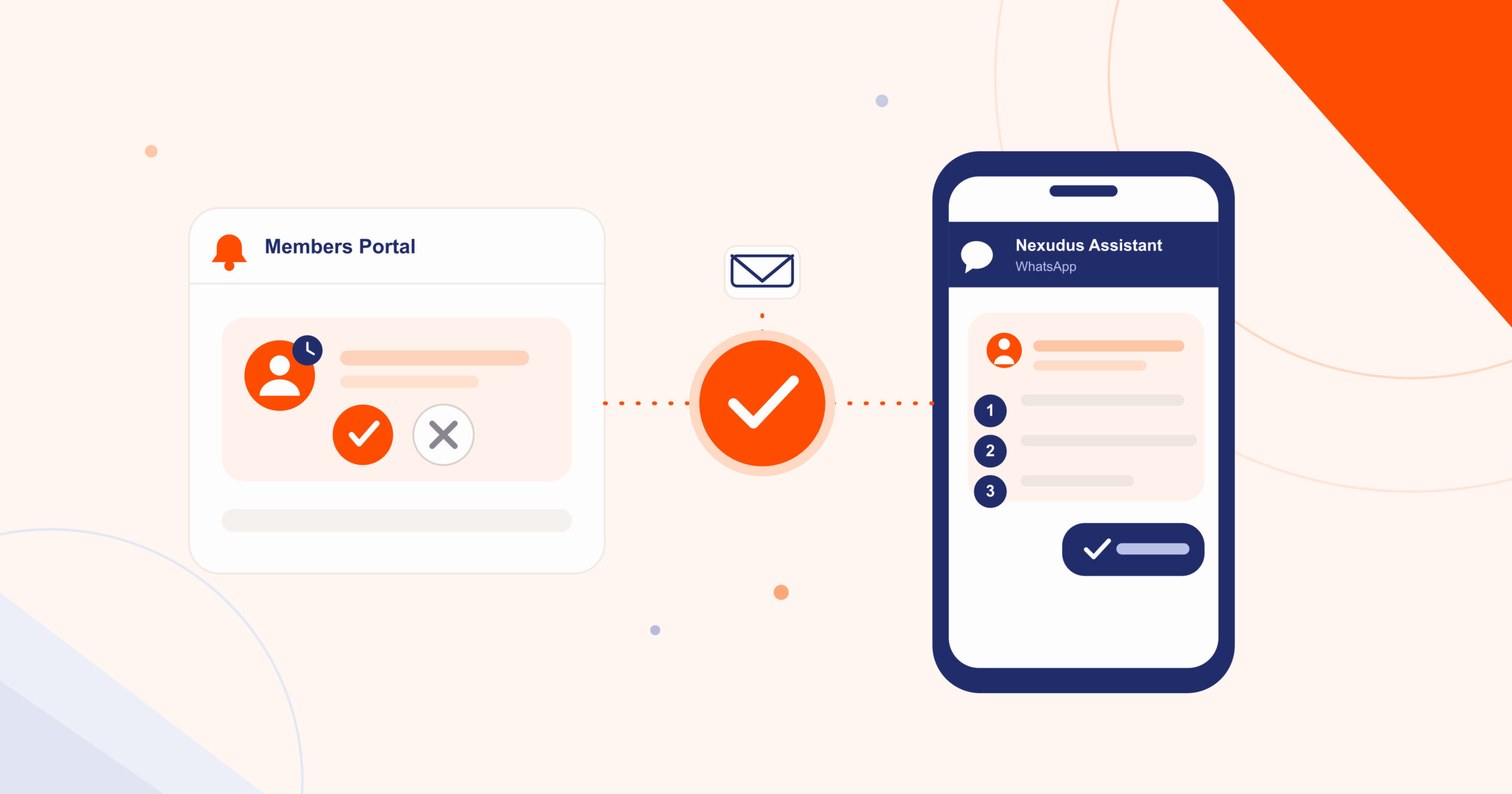
Hosts can now respond to visitor approval requests the moment they come in, instead of waiting on email. When a visitor requiring approval registers with NexIO, the host receives a push notification on the Members Portal and a WhatsApp message alongside the existing email, and can approve or reject the visit from any of the three. This reduces the time visitors spend waiting at reception and cuts down on missed approvals.
New notification types
1. Push notification
Hosts now see a dedicated tile on their Members Portal home dashboard whenever they have a visitor awaiting approval. From here, they can easily approve or reject the visitor.
The tile only lists visitors who are still pending approval – approved or rejected visitors drop off automatically.
Important to Note: Approving or rejecting a visitor here has the same effect as approving from the email link – the visitor’s status updates immediately across the Admin Panel and NexIO.
2. WhatsApp message
Hosts with a mobile phone number on file and a WhatsApp channel enabled for the space now receive a WhatsApp message when a visitor needs approval. The message includes the visitor’s name and reason for visit, along with three numbered options to reply with:
- Approve and hold
- Approve and send to my desk
- Reject
The host replies with the number of their choice, and the AI Assistant confirms the action before applying it.
Admin Panel
WhatsApp approval template setup
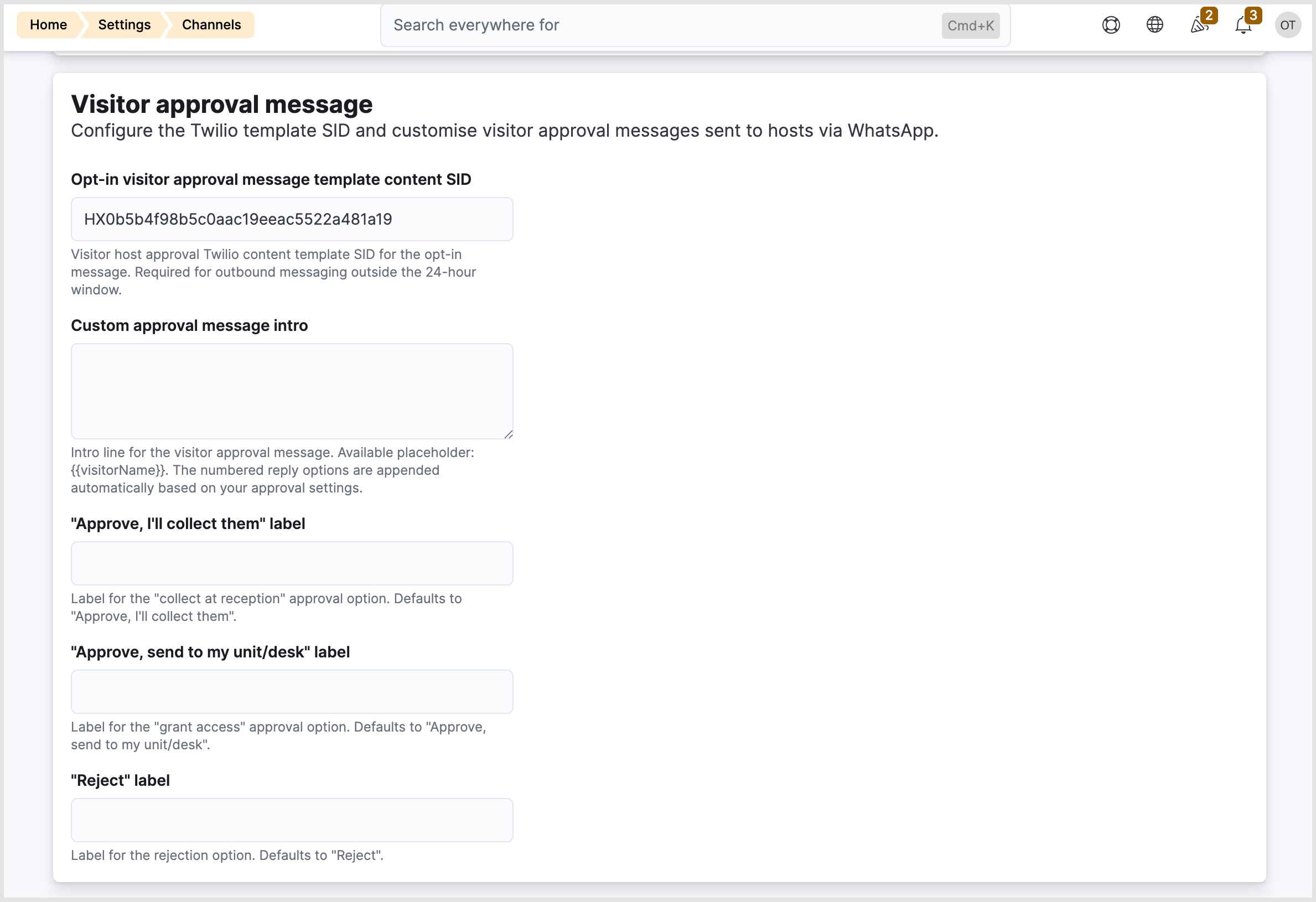
To enable WhatsApp visitor approval messages, operators must first set up a WhatsApp channel and create an approval message template in their own Twilio account, then enter the template’s reference ID in the Admin Panel.
- Navigate to Settings > AI Assistant > Channels > WhatsApp.
- Paste the Template SID from your Twilio account into the Opt-in visitor approval message template content SID field.
- Click Save changes.
Operators can customise the wording and language of the template, but two elements must stay fixed for the integration to work:
- {{1}} – always the visitor’s name.
- {{2}} (optional) – the visitor’s reason for visit or notes, if the template includes it.
Options 1, 2, and 3 – must map to Approve and hold, Approve and send to my desk, and Reject, in that order.
Important: The WhatsApp message will not send unless a valid Template SID is configured, even if the WhatsApp channel itself is otherwise set up.
Want to know more about
how Nexudus could help your business?
We’re here to answer any questions you have.