

AML screening and KYC/KYB checks for Virtual Offices
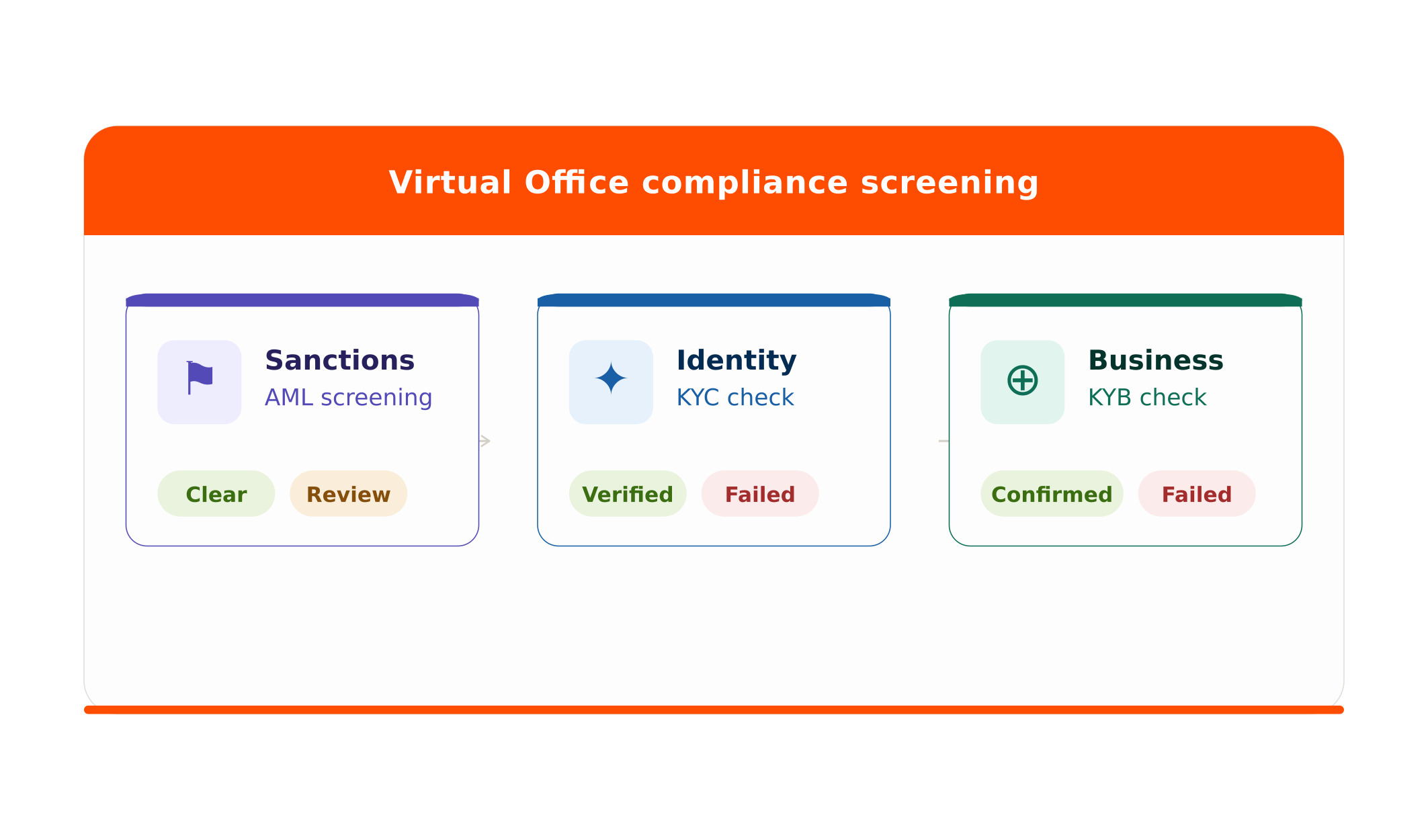
Space operators running Virtual Office plans in the UK and Europe can now run automated Anti-Money Laundering (AML) and Know Your Customer/Know Your Business (KYC/KYB) checks as part of the Virtual Office onboarding flow. These checks verify that directors are who they say they are, have no financial sanctions against them, and are the legitimate owners of the business they have registered. AML screening is configured at the plan level in the Admin Panel and sits alongside the existing Stripe Identity integration in a new Compliance section under Settings > Integrations.
What each check does
Three services work together to verify a Virtual Office customer:
- Stripe Identity – confirms each director is who they claim to be by matching their details to an official document such as a passport or ID card.
- OpenSanctions – checks those individuals against international sanctions lists and watchlists to confirm they have no financial or legal issues (AML) in their history.
- Pappers – verifies that the directors are the legitimate, registered owners of the business they have provided details for. Company names must match exactly as they appear in Companies House.
Important to Note: AML checks run before identity checks. If a customer fails AML screening, the system will not proceed to identity verification.
Connecting OpenSanctions and Pappers
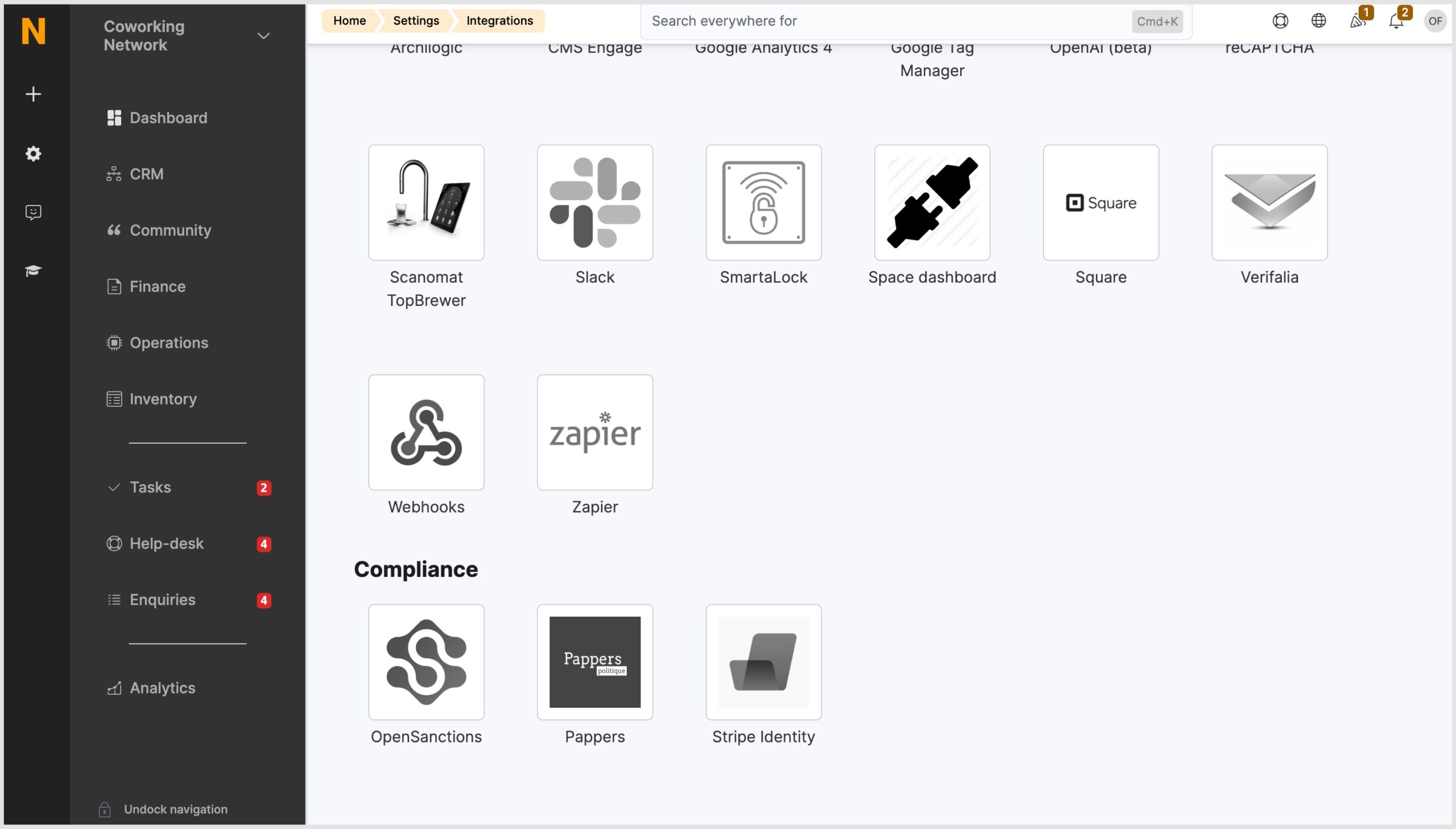
OpenSanctions and Pappers are configured in the Compliance section of integrations, alongside Stripe Identity.
- Navigate to Settings > Integrations and scroll to the Compliance section.
- Select OpenSanctions or Pappers and enter your API credentials.
- Click Save changes.
Note: You’ll need to hold accounts directly with OpenSanctions and Pappers. Please see their websites for their most up-to-date pricing information. There is no additional cost on the Nexudus side.
Enabling AML screening on a Virtual Office plan
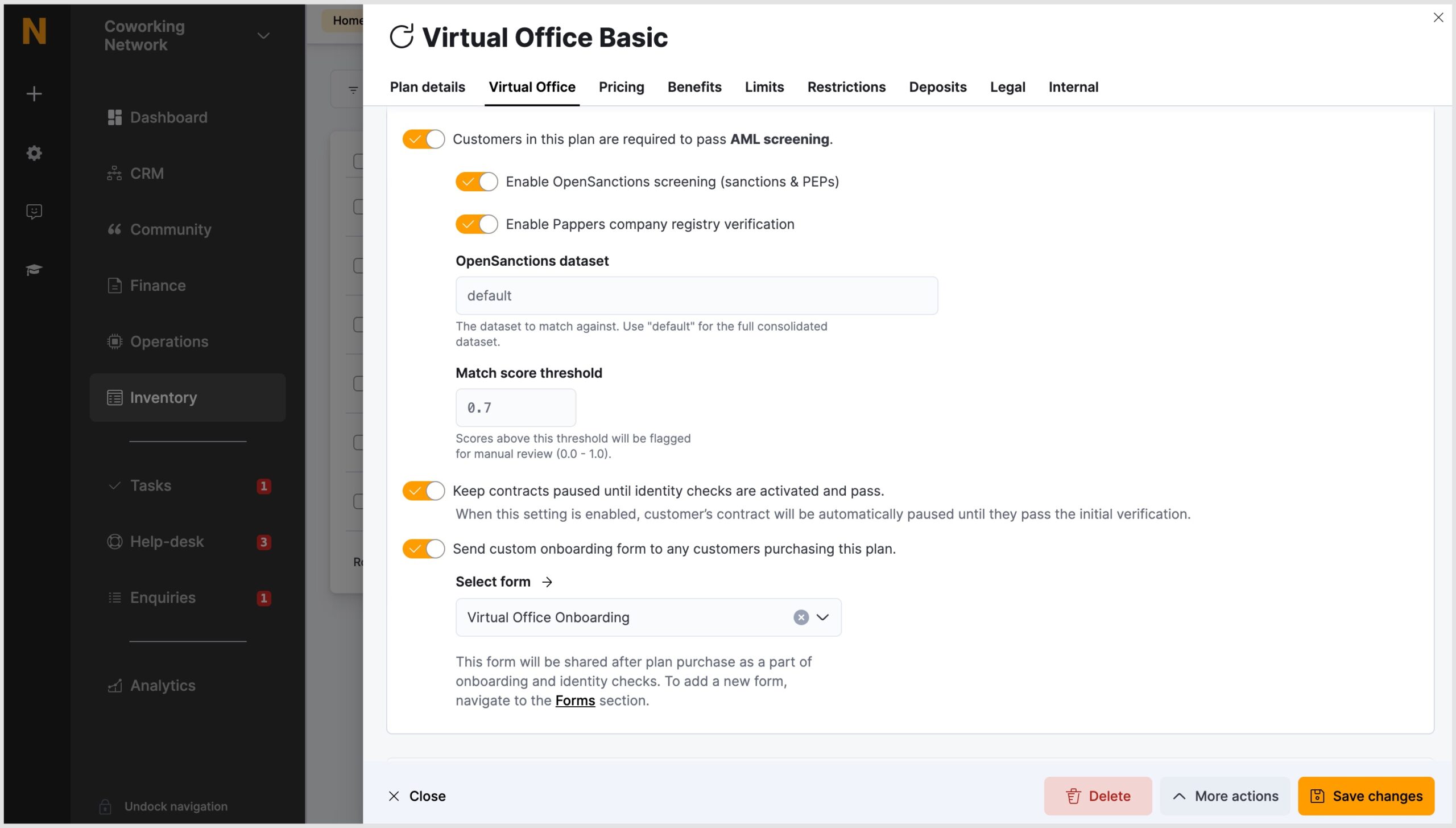
AML screening is enabled at the plan level. Each check can be turned on independently so you can choose to use OpenSanctions only, Pappers only, or both together.
- Navigate to Inventory > Plans and open the relevant Virtual Office plan.
- Select the Virtual Office tab and scroll to the AML Screening section.
- Enable Customers in this plan are required to pass AML screening in the Onboarding section.
- Select the checks to run: OpenSanctions, Pappers, or both.
- If you enable OpenSanctions, select the dataset and the match score threshold. The dataset ‘default’ will cover the majority of use cases. The default match score of 0.7 is suitable for most spaces. A check score of 0 means no match was found.
- Click Save changes.
Note: Enabling the Keep contracts paused until checks pass option will prevent a customer from accessing their Virtual Office contract until all AML and identity checks are complete.
The Virtual Office onboarding flow with AML enabled
When AML screening is enabled on a plan, an AML step appears in the Virtual Office onboarding flow before identity checks. Checks run automatically based on the company details and director information the customer submits during checkout.
The AML step can return the following statuses:
- Clear – no matches found; the customer proceeds to identity checks
- Under review – a potential match was found and requires an operator to assess it
- Match found – a confirmed sanctions match; the contract is blocked
- Manually cleared – an operator has reviewed and approved the customer
- Error – a processing issue occurred; the customer may need to resubmit details
Important to Note: If a check returns an error due to a name mismatch, the customer should re-enter their company name exactly as it appears in Companies House — for example, ‘Company Limited’ rather than ‘Company Ltd’.
Reviewing AML checks on a contract
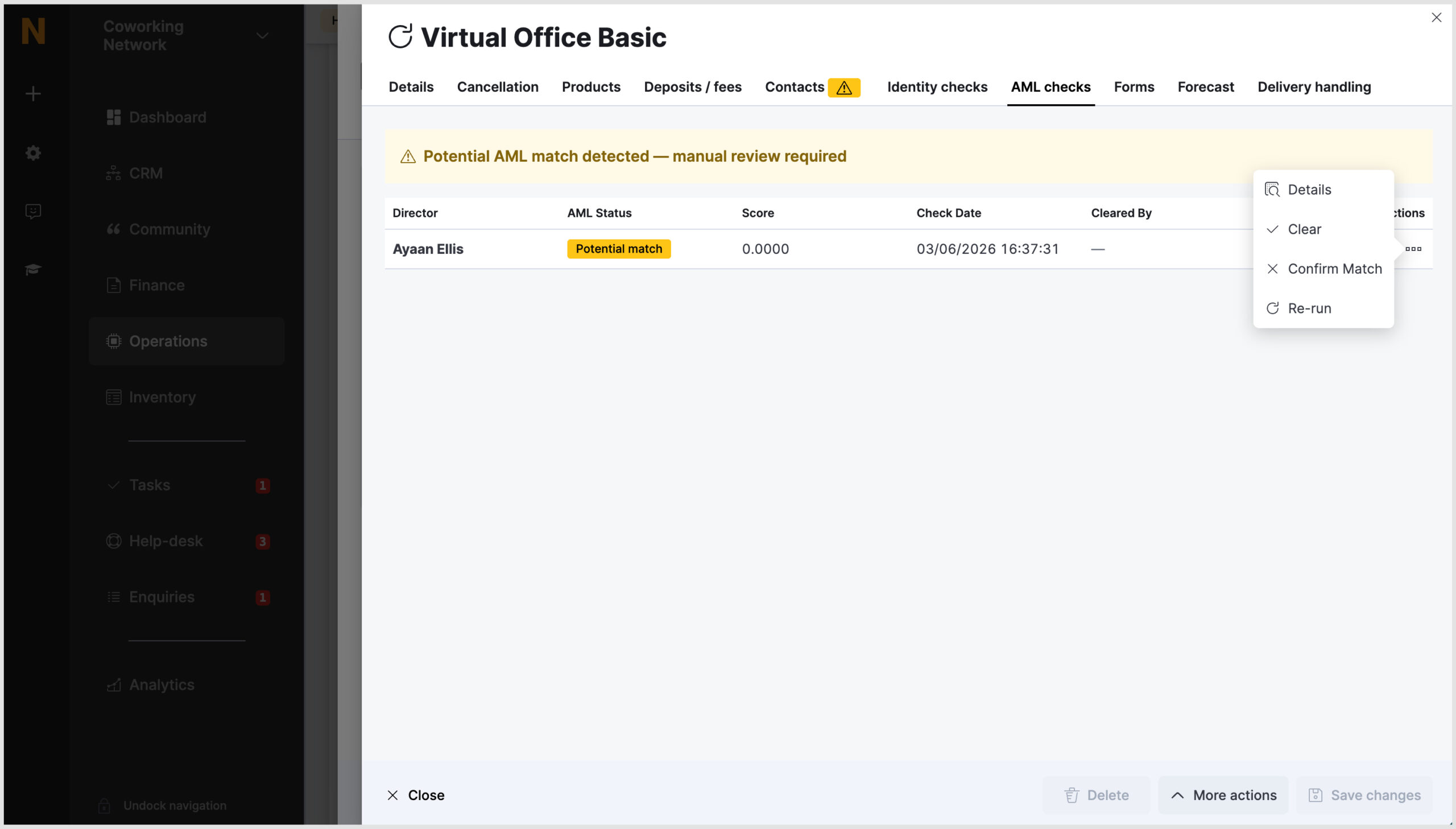
In the Admin Panel, there is a new AML tab in Virtual Office contracts. From the AML tab, you can:
- Review the result of each individual check
- Rerun a check
- Manually clear a check to allow the contract to proceed
- Confirm a match to block the contract where a sanctions record has been found
To access the tab, open the relevant contract from CRM > [Member name] > Sales > Contracts and select the AML tab.
Want to know more about
how Nexudus could help your business?
We’re here to answer any questions you have.