

Razorpay Payment Method in the Members Portal
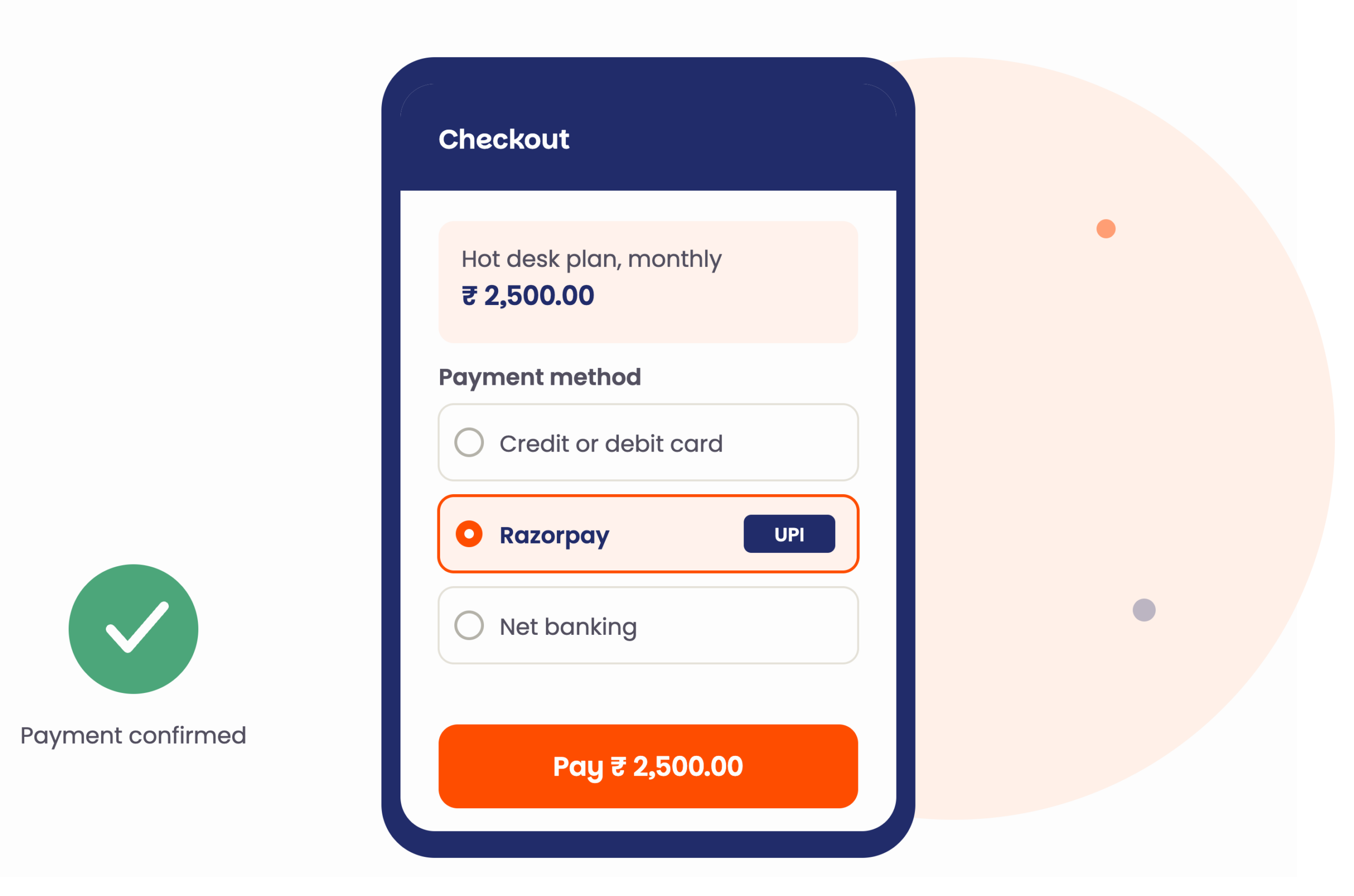
Spaces can now also accept payments with Razorpay on the latest Members Portal. This is especially useful for spaces operating in India, giving your members a familiar, locally trusted way to pay.
Summary
- When enabled, Razorpay appears as a payment option in the Members Portal checkout
- Works for both signed-in members and guest checkout
- Supports Razorpay’s card and alternative payment methods
Set up
Just like with other payment methods, it first needs to be enabled on the Admin Panel.
- In the Admin Panel, navigate to Settings > Payments and currency > Payment methods.
- Enable Razorpay.
- Enter the valid Razorpay API credentials.
- Click Save changes.
Razorpay processes payments in Indian Rupees (INR). Therefore, your space currency, products, resources, and plans need to be set to INR in the Admin Panel.
For guest checkout, turn on Collect email from customers and set it to Mandatory in your Razorpay Checkout Features settings. This makes sure a valid member email is captured at checkout. If email is left optional, guest transactions will be recorded against a placeholder address (void@razorpay.com).
Good to know
- Razorpay card details are not saved in the Members Portal, so members must enter their card details each time.
- Customers will not be automatically refunded if their payment was made through the Razorpay integration. As an admin, you’ll need to select a manual payment method to issue the refund in Nexudus and send the refund payment outside of Nexudus.
Want to know more about
how Nexudus could help your business?
We’re here to answer any questions you have.