

Paying Invoices without a Members Portal Account
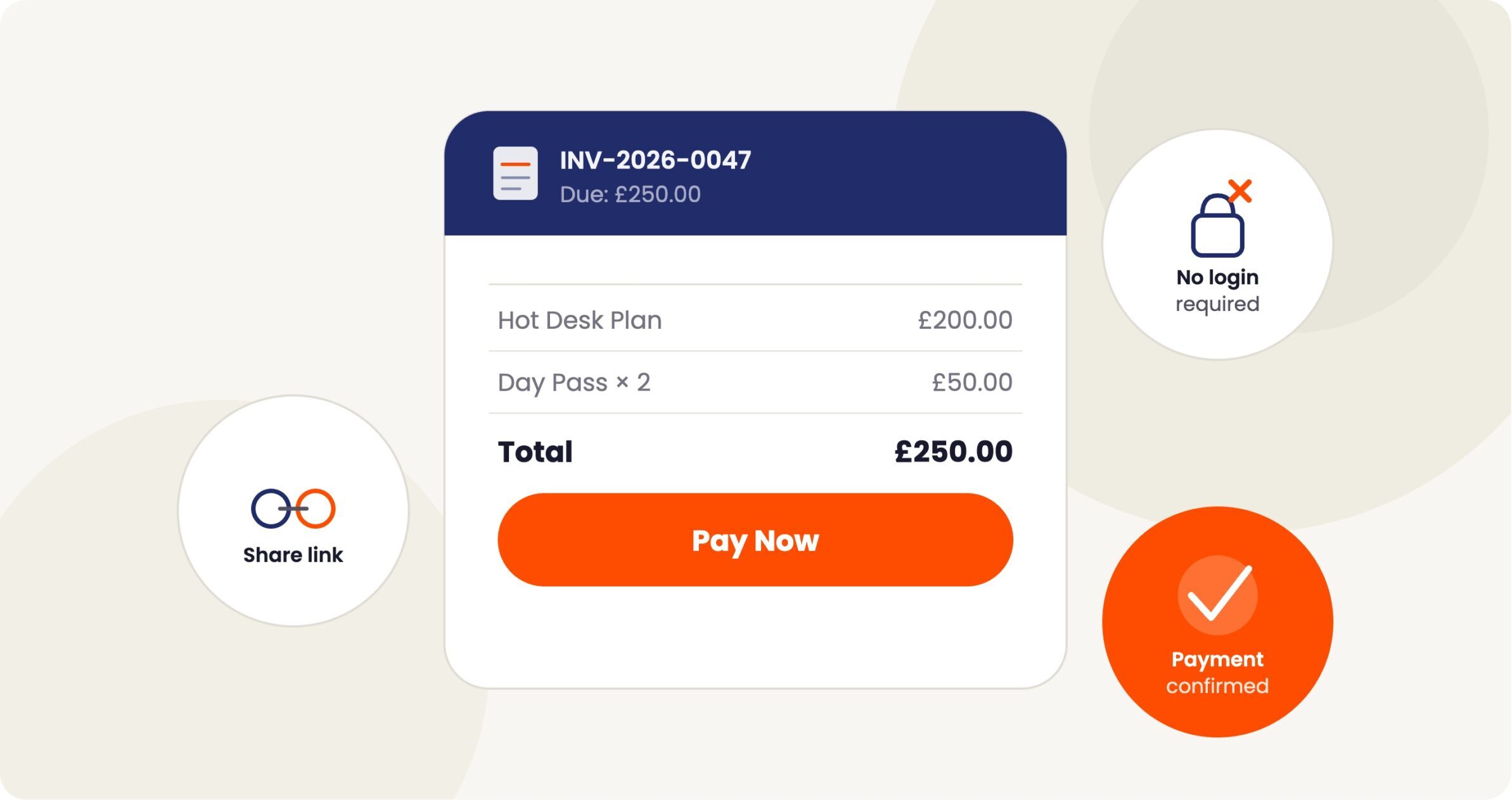
Space operators can now share a direct payment link so customers can pay an outstanding invoice without logging in to the Members Portal v5. Guest invoice payment is useful when a customer does not have a portal account, has forgotten their credentials, or when you want to send a quick payment link via email, WhatsApp, or SMS. This update covers the new payment page, the payment link in the Admin Panel, and how invoice notification emails select the right link automatically.
Admin Panel
1. Payment link on the invoice
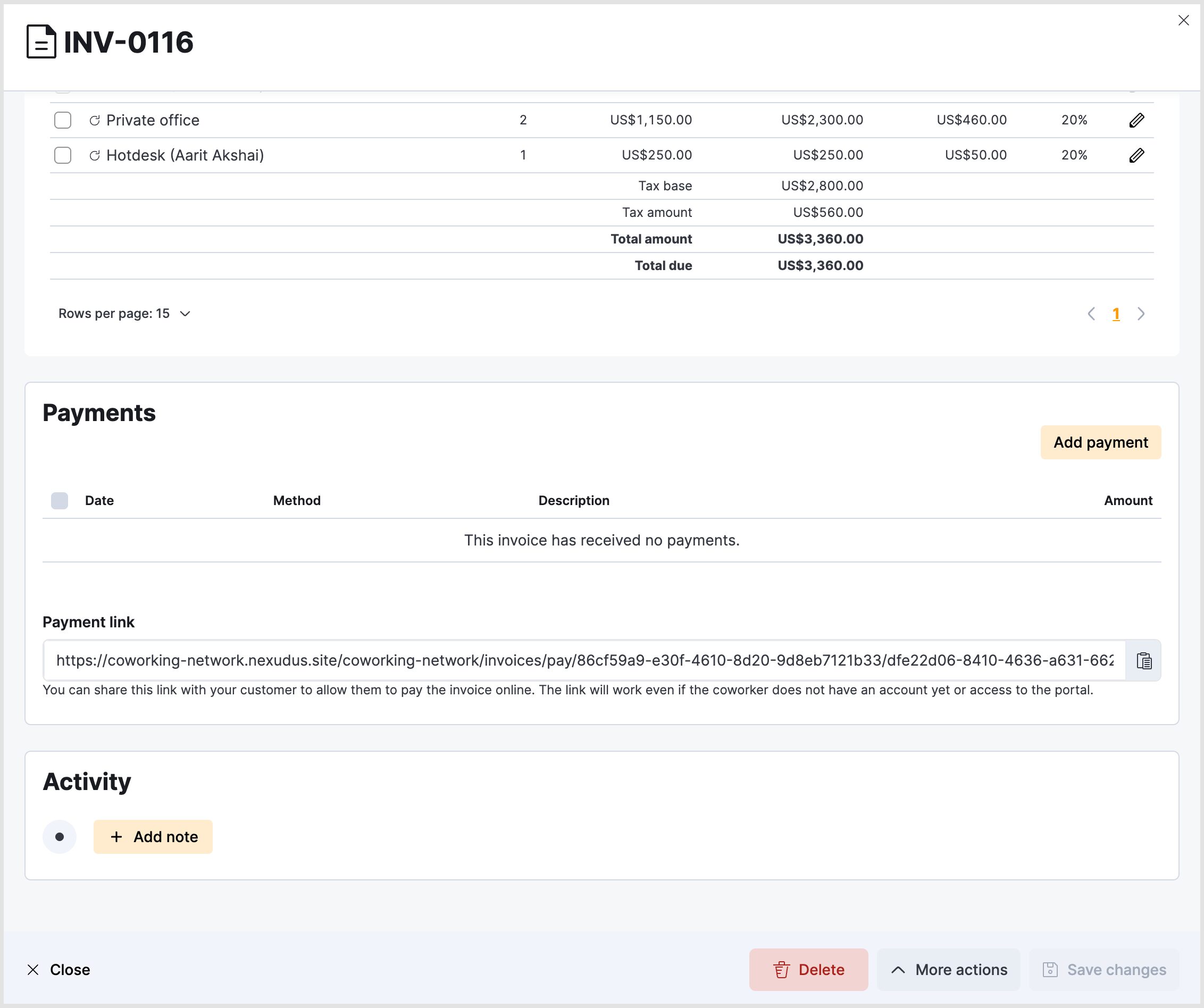
When you open an unpaid invoice in the Admin Panel, a Payment link field appears in the Payments section. Copy this link and send it to your customer through any channel — the customer can pay without needing to log in.
Note: The Payment link field is only visible for locations running the latest version of the Members Portal.
To find and copy the payment link:
- Navigate to Finance > Invoices.
- Open the unpaid invoice you want to share.
- Scroll down to the Payments section.
- Click the copy button next to the Payment link field.
- Send the link to your customer.
2. Invoice notification emails
Previously, invoice notification emails always sent members to their invoices list in the Members Portal, which required them to log in. Nexudus now selects the link automatically based on whether the customer has portal access:
Customer has portal access: the email includes a magic log-in link so they can sign in and access the invoice in their account.
Customer does not have portal access: the email includes the guest invoice payment link, so they can pay directly without logging in.
Important to Note: You do not need to configure this manually. Nexudus automatically determines which link to include for each customer based on their portal access status.
Members Portal
1. Guest invoice payment page
When a customer opens a guest payment link, they see a summary of the invoice including line items, total amount, and due balance, followed by the available payment methods for the location. No account or password is required to complete the payment.
If the customer is already a member, a banner invites them to log in for a faster experience with saved payment methods.
Payment gateways supported on the guest invoice payment page:
- Stripe – Yes
- Spreedly (card payments) – Yes
- PayPal – Yes
- GoCardless – No – requires a linked bank account
Note: At least one of the supported gateways must be enabled in your location settings for the payment link to work.
2. Payment confirmation page
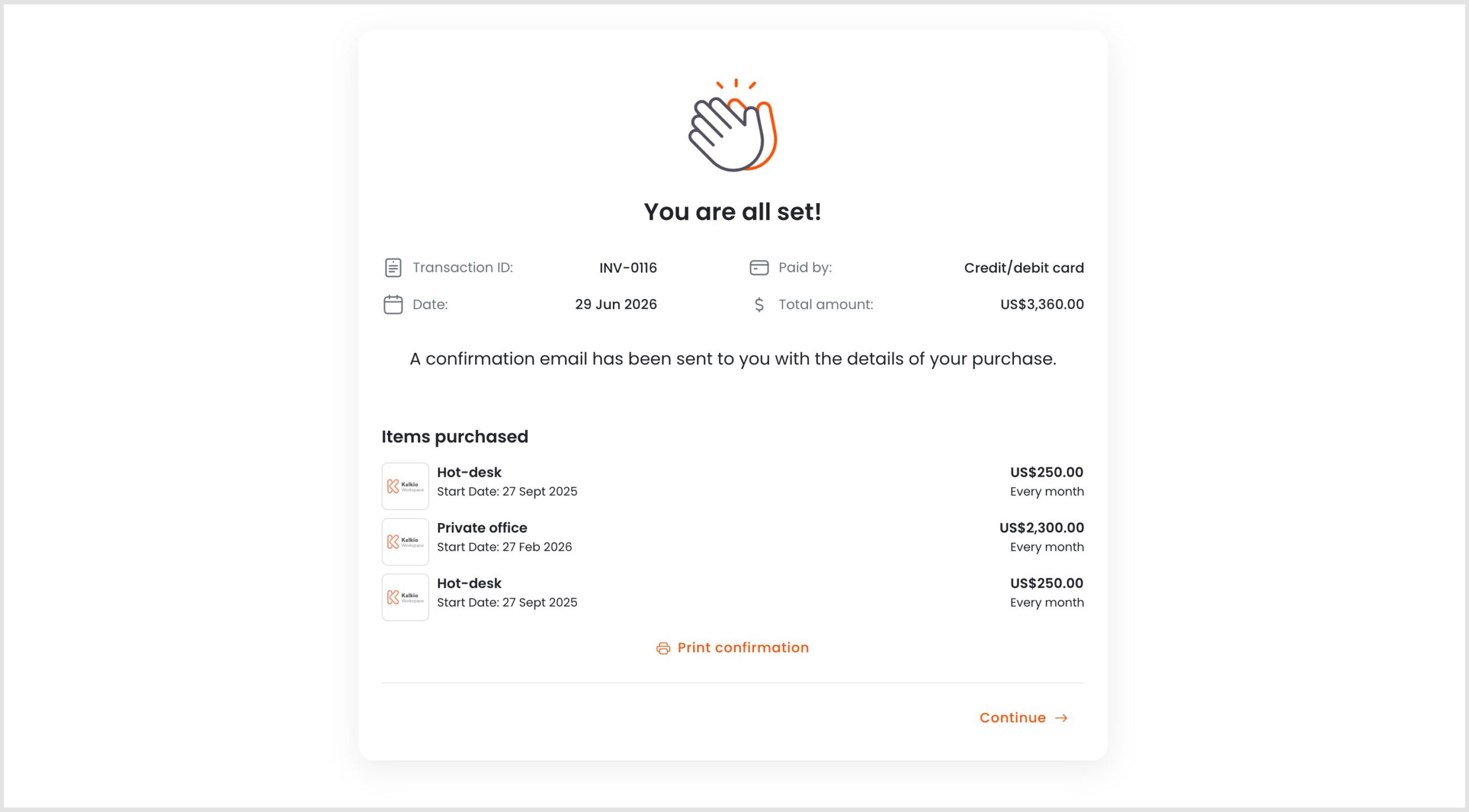
Once payment is confirmed, the customer is taken to a confirmation page.
Unlike the regular guest checkout, the guest invoice payment confirmation page does not show a ‘Create an account’ prompt.
The PDF download on the confirmation page works without authentication. The customer can download their invoice directly without logging in.
Security
Each guest payment link contains two unique identifiers: the customer’s internal ID and the invoice’s internal ID. Both must match for the page to load. This means:
- The link cannot be guessed or enumerated.
- It only works for the specific invoice it was generated for.
- Once the invoice is paid, the page shows a confirmation and the link can no longer be used for payment.
Note: Treat payment links like any other sensitive URL. Only share them with the intended recipient.
Want to know more about
how Nexudus could help your business?
We’re here to answer any questions you have.