

The New Passport Experience
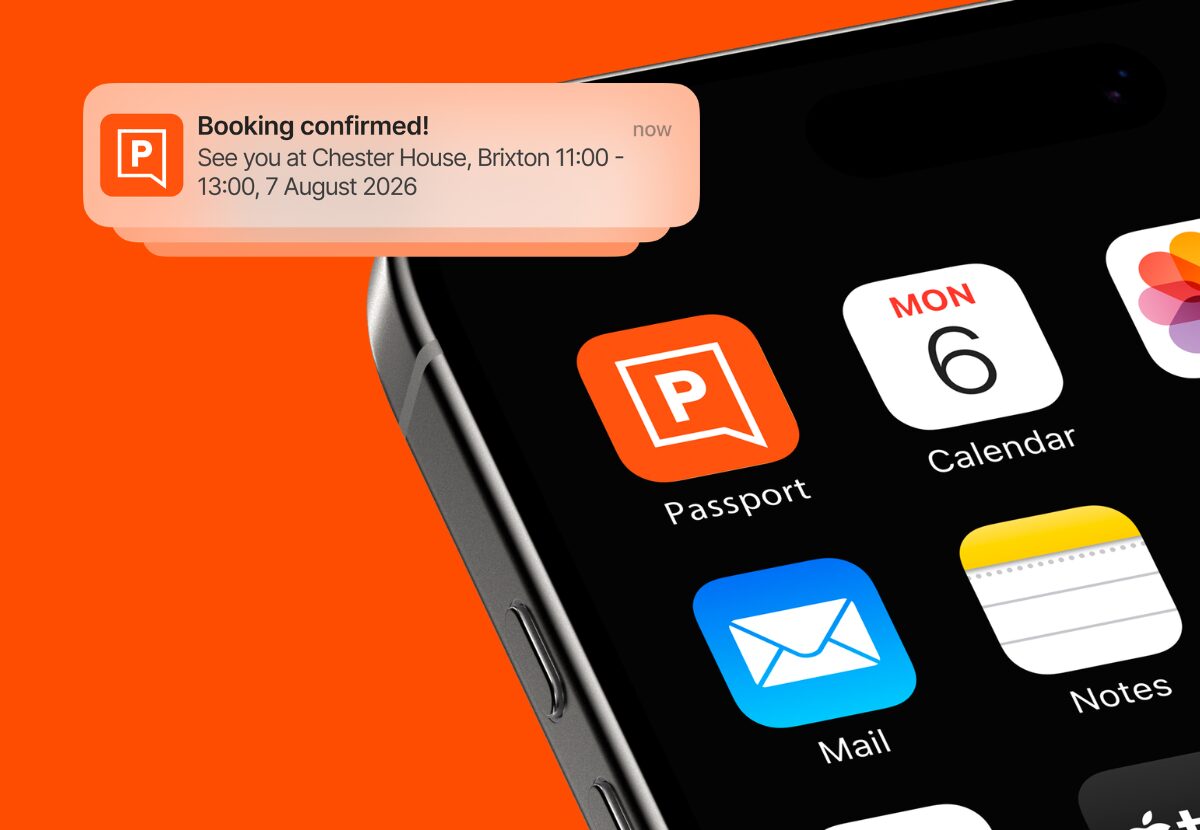
We are excited to announce that the new Passport app is here! Now, the members’ experience on the Members Portal site and the Passport app will be streamlined, and the functionality will be consistent across both.
Updates made in the Members Portal flow into the app automatically. When you make a change in the Members Portal drag-and-drop editor, it will be reflected in the Passport app. There is no separate mobile configuration needed. The only difference between the two is that Passport has the added access control functionality and print release tiles, which are not available on the portal.
Let’s take a look at what’s new in Passport and an overview of general Passport functionality.
Sign-In & Access
1. New Login Flow
When a member logs in to the Passport app, they will be shown the locations they have access to. They’ll then be directed to the login page for the location they select. Members with access to only one location will skip this step entirely.
For the White-label app, members will be taken directly to the login page.
2. QR Code Authentication
The customer QR code can be used to quickly log in to companion apps such as NexBoard and NexIO. A member can add it to their phone’s home screen as a widget. Then they can point the widget straight at a reader such as NexIO.
In the Editor, the Dashboard Hero component needs to be used in order for these tiles to appear on the Passport app. In the Admin Panel, ensure the Customer QR code setting (Settings > Companion Apps > Passport) is enabled.
3. Biometric Support
Members can unlock Passport using their device’s fingerprint or face recognition, so they don’t need to re-enter their password each time.
4. Magic Linking
Opening magic links (aka deep links) in Passport is much smoother now. Magic links now open Passport directly and log the member in, instead of opening a browser first.
5. Access Control
The members’ experience hasn’t changed. They can still use the Passport or White-label app to unlock doors and access your space.
6. Automation Tiles
This functionality remains the same in new Passport experience. Members can scan or tap the tiles you’ve set up and the defined action will be triggered. See the Knowledge Base for more information on Automation tiles.
Home Screen & Widgets
1. Beacon Functionality
Members can tap their phone against supported hardware, such as NexBoard or NexIO, to trigger an action without opening the app.
2. Print Release
If your space uses PaperCut MF printers, you can connect Elatec readers to them, which allows your members to release their prints from the Passport app.
To release a print job, the member can simply tap the Release Prints tile and hold their phone next to the printer reader.
App Management
1. Settings
Settings now apply to the Members Portal and Passport app rather than separate settings for each. Most of these are still defined in the Admin Panel Settings, however, some are defined in the Members Portal drag-and-drop editor.
2. Push Notifications
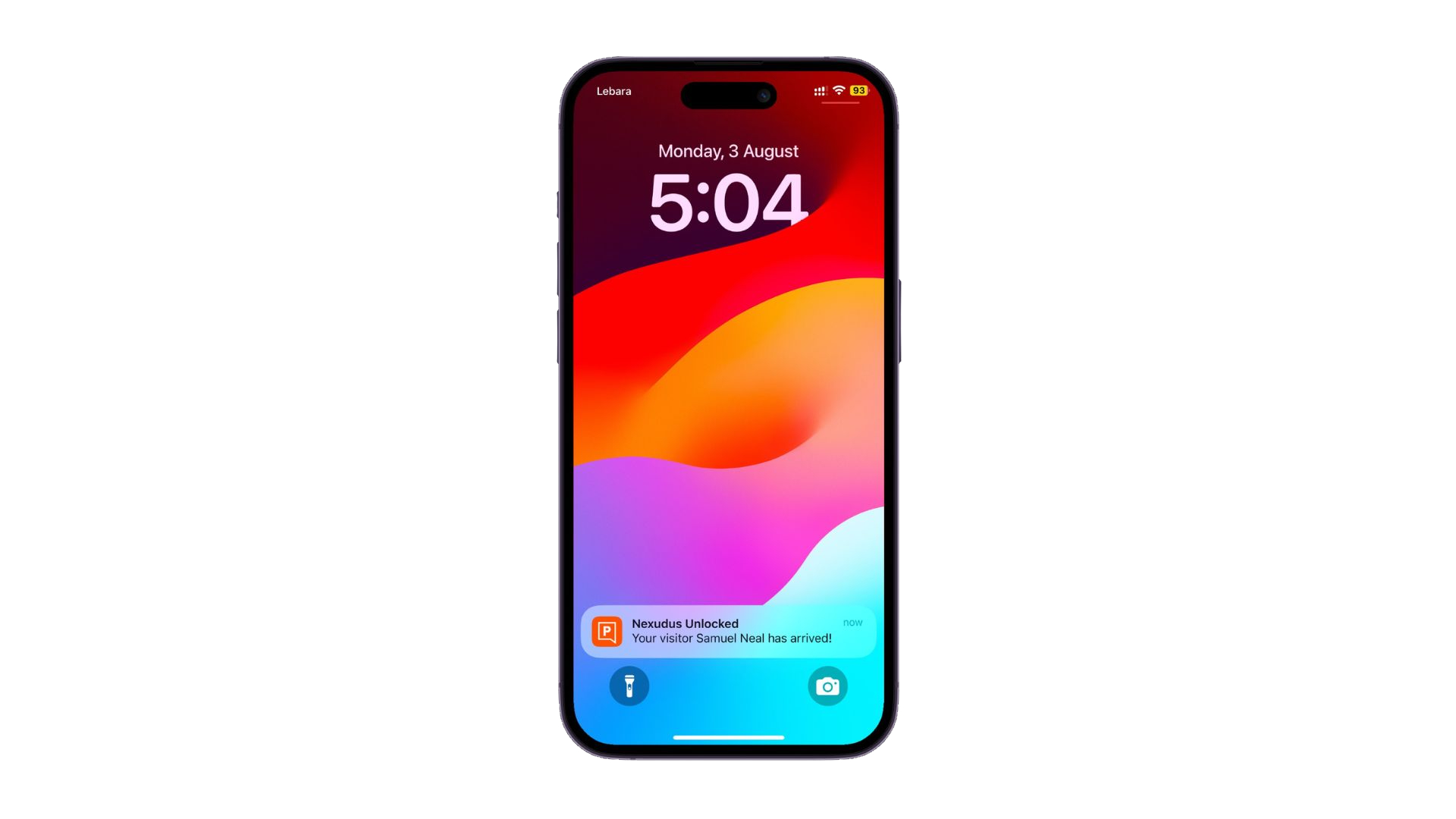
Passport sends push notifications to keep members informed without needing to open the app.
3. Update App Modal
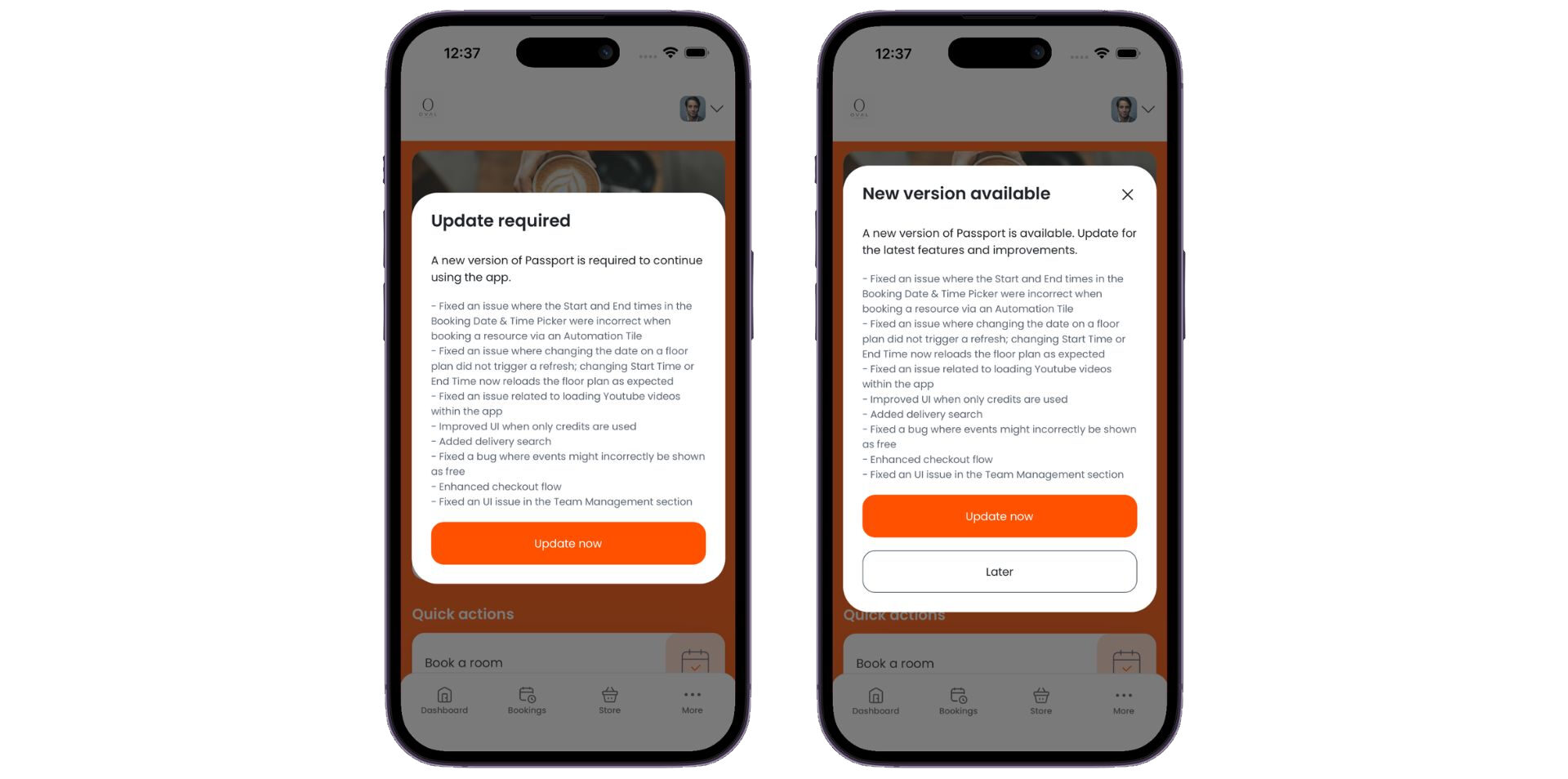
When a new version of Passport is available, members now see a modal prompting them to update. The message they see will depend on the type of update.
4. App Rating
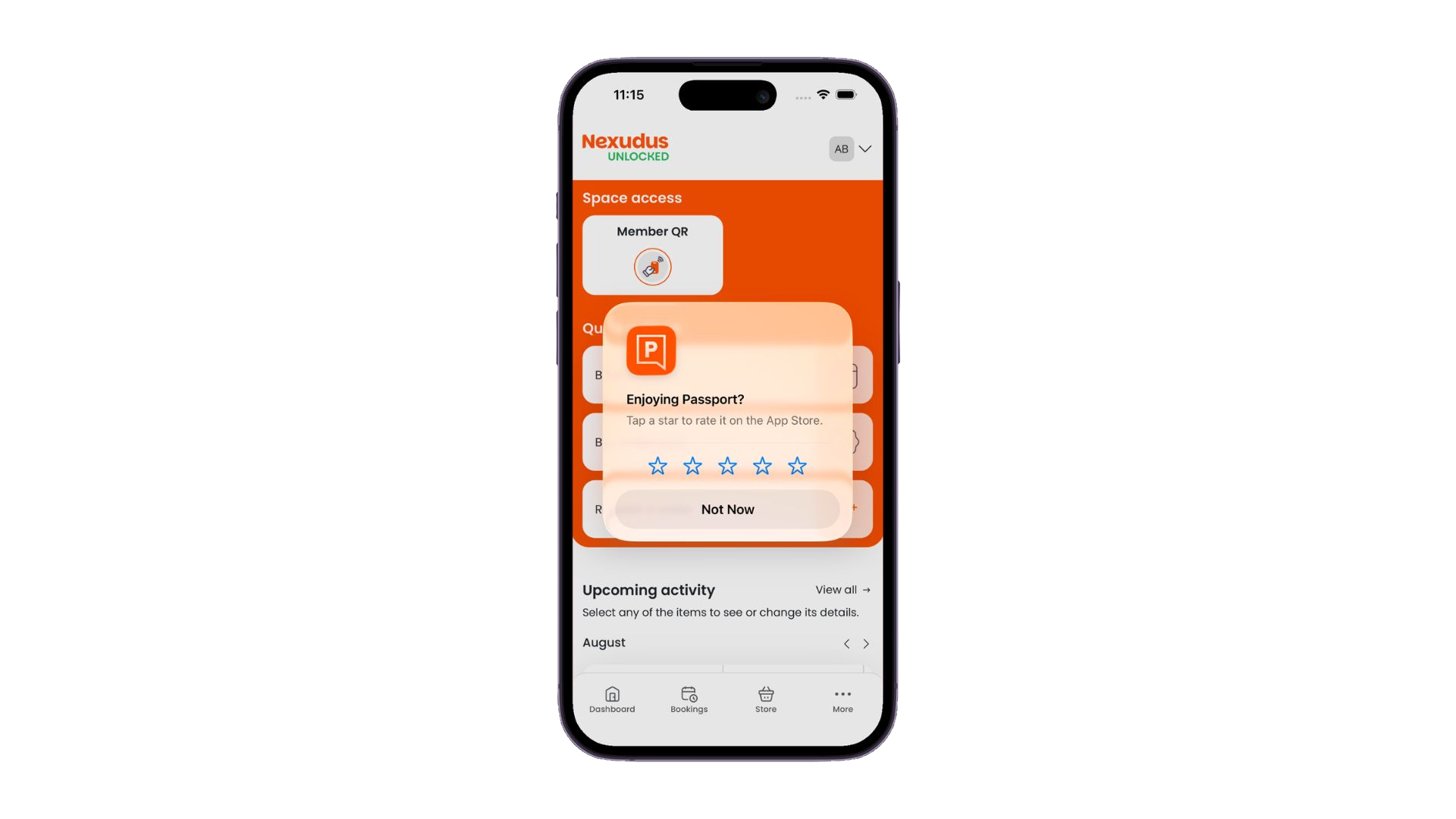
Members can now rate Passport directly from the app. This will also be available on White-label apps.
Branding and Customising
1. Branding
The colours and branding settings are pulled from Admin Panel > Settings > Branding. With this latest update, when you change the colours of the Members Portal, they will be reflected in the Passport app.
If you haven’t migrated to the latest version of the Members Portal, then the latest Passport app will default to the Nexudus templates but with your branding and the features available will depend on your settings.
2. Custom pages
These are created and maintained in the MPv5 drag-and-drop editor.
If you have already migrated to Members Portal v5, then your custom pages will automatically appear in the latest Passport version.
If you are on an older version of the Members Portal, the custom pages you built for Passport v3 won’t be automatically migrated. You’ll need to recreate them in the drag-and-drop editor.
If there are any custom pages you’d only like to show to mobile or desktop users, you can do this using Bootstrap breakpoint CSS classes.
Supported Operating Systems
- Android: Android 10 and above.
- iOS: iOS 15 and above.
Please note that this is subject to change.
Want to know more about
how Nexudus could help your business?
We’re here to answer any questions you have.