

Changing Settings En Masse
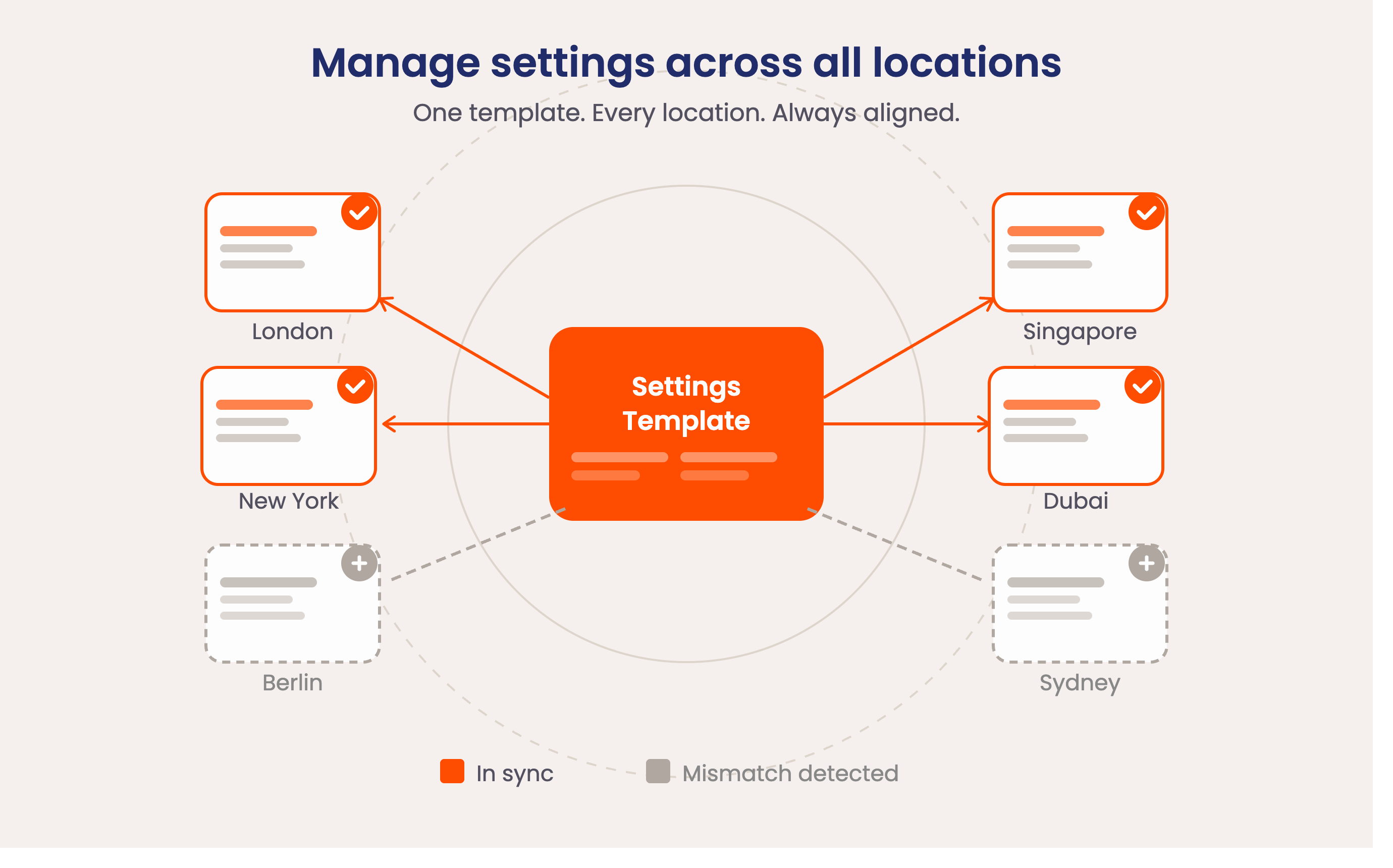
If you manage a multi-location network, you can now view and manage settings across all of them from one place. The new settings templates feature gives operators a high-level overview of where settings differ between locations and the ability to bring them into alignment — without navigating to each location individually.
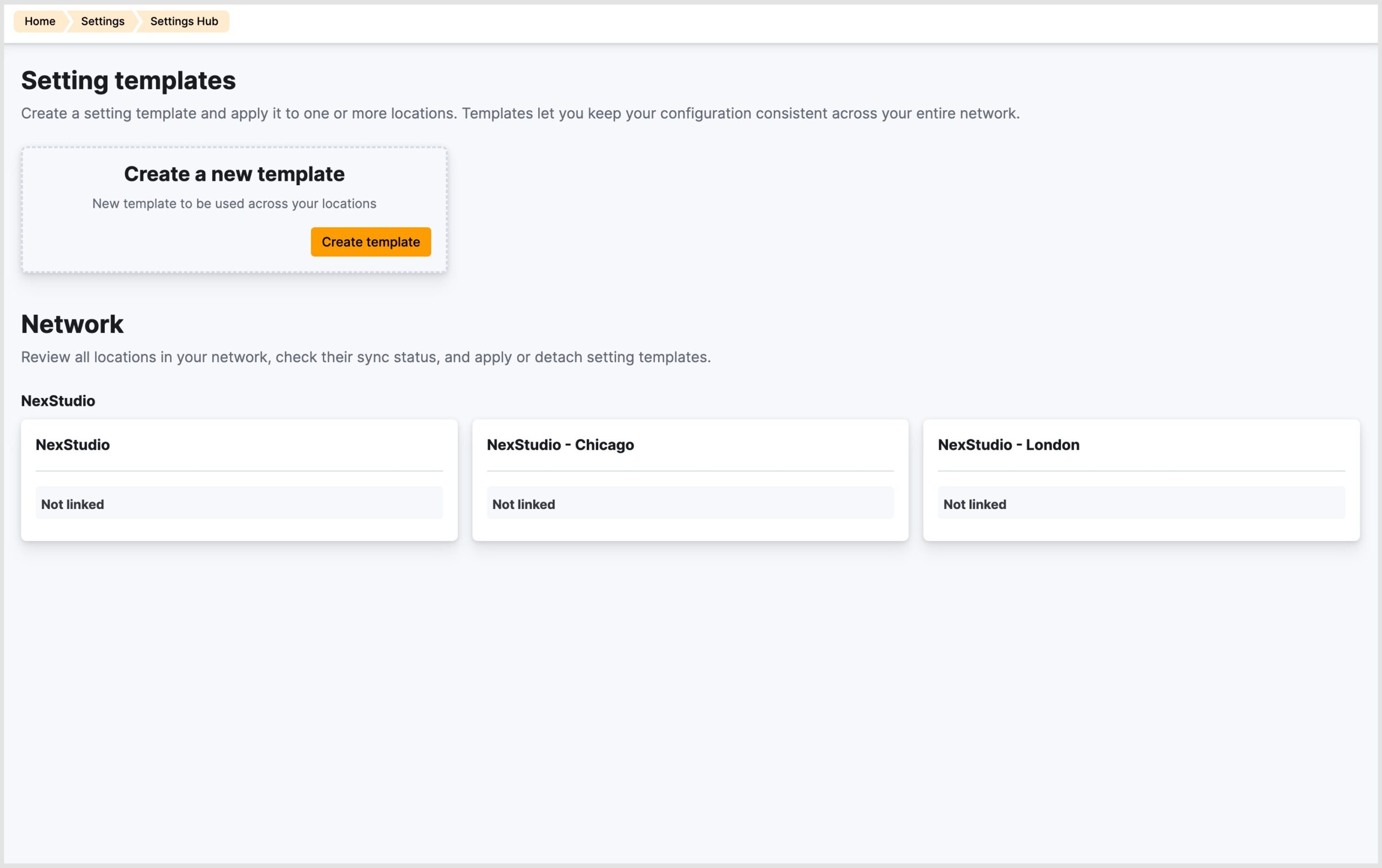
Each template is based on the settings of an existing location. You can then link other locations to that template and see at a glance which locations have settings that no longer match it.
Creating a template
- In the network location, navigate to Settings > Settings hub.
- Click + Create template.
- Select the location whose settings you want to use as the baseline.
- Name the template, enter a description and click Save.
Linking locations to a template
- Open the template from Settings > Settings hub.
- Click Link to locations.
- Select the locations you want to align to this template.
- Click Save.
Once linked, the template overview shows which locations have settings that do not match the template. You can review the mismatches and choose to apply the template settings to bring those locations back into alignment.
Applying a template to mismatched locations
- From the template detail page, click View next to a location.
- Review the list of settings that differ.
- Click Sync settings to overwrite the location’s settings with the template values.
Syncing settings across the locations does not link them. So after syncing, you’d need to repeat the above sets if you change settings in one location and would like the same changes to be applied to the other locations.
Important to Note: Applying a template overwrites the affected settings on the linked location. This action cannot be undone. Review mismatches carefully before applying.
Want to know more about
how Nexudus could help your business?
We’re here to answer any questions you have.