

The ‘Add to Basket’ option is now available in Members Portal v5

What’s new in the Members Portal V5
Members can now add multiple items from across the portal, such as bookings, products, events, and courses and complete everything in one simple checkout. This makes the purchasing experience faster, smoother, and more flexible.
How it works
Members can add items to their basket from any checkout page using the Add to Basket / Add to Cart button. (Basket wording changes automatically based on language settings. Basket for British and Cart for other English locales)
They can continue browsing, add more items from different areas of the portal, then review and pay for everything together in a single transaction.
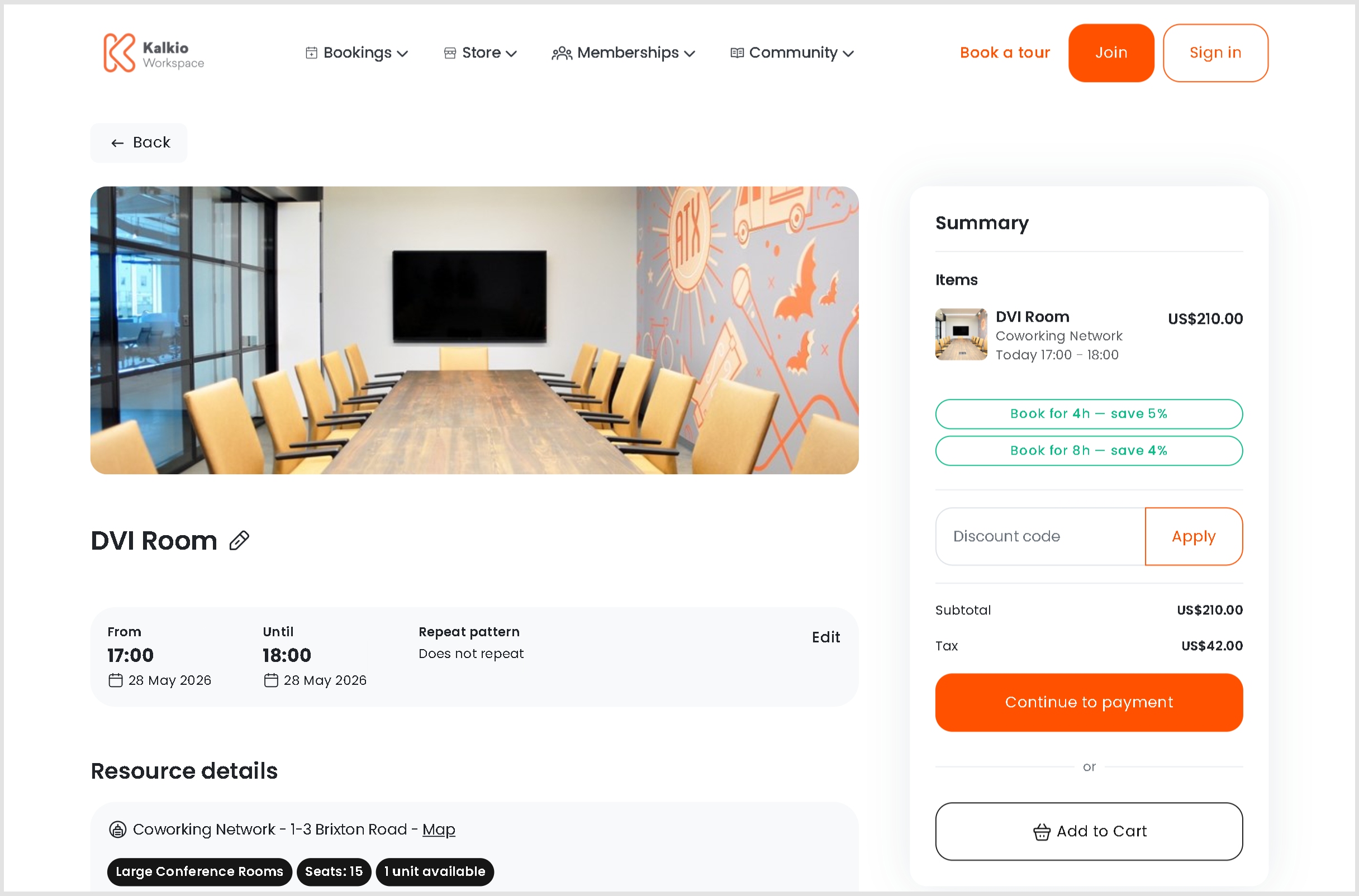
To make checkout more convenient, items added to the basket are saved in the browser for 30 minutes. That means if a member leaves the page and comes back shortly after, their selected items will still be there.
What members see
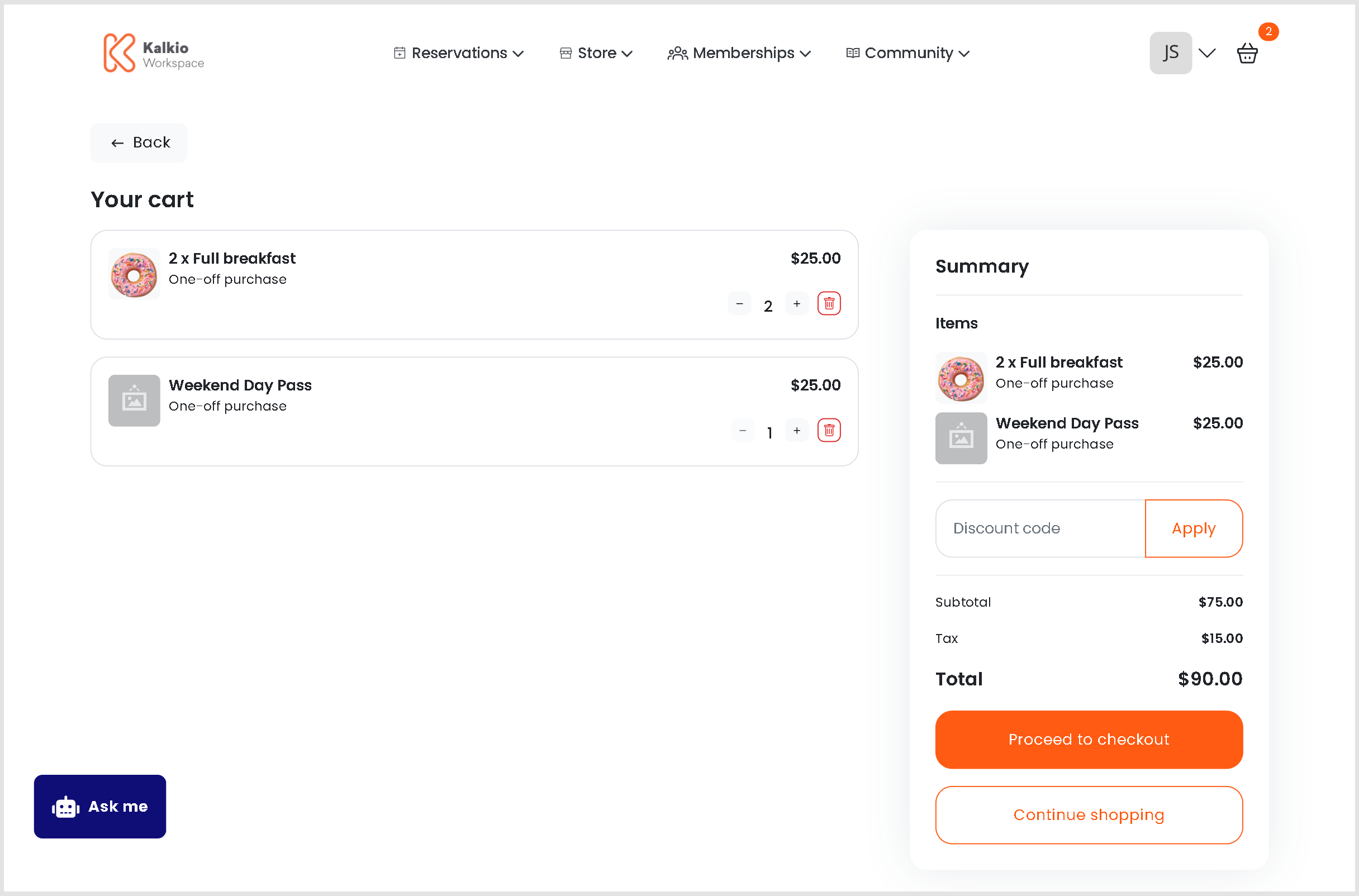
The basket page is designed with a simple two-column layout for easy review.
| Section | Description |
| Items (left column) | Shows each selected item with its details, quantity (where applicable), price, and remove option. |
| Order Summary (right column) | Displays subtotal, taxes, credits, discount codes, and final total in real time. |
Actions available
Proceed to Checkout: Primary action to continue to payment.
Continue Shopping: Returns members to the portal so they can add more items.
Supported item types
Members can mix and match:
- Bookings – resource reservations with date, time, and resource details
- Products – store items with quantity controls
- Events – event registrations or tickets
- Courses – course enrolments
Quantity controls
For Products, members can increase or decrease quantity directly in the basket using + / − controls.
For Bookings, Events and Courses, quantities will remain at 1 item.
Smart checkout button
The checkout button updates depending on what’s in the basket. For example, if the basket contains only bookings, the checkout button will be ‘Place Booking’, and for mixed items, it will say ‘Proceed to Checkout’.
Booking conflict detection: If a booking added to the basket becomes unavailable before checkout (for example, another user books the same slot), the system automatically shows an alert.
Order summary
Before payment, members can review the order summary, which includes Subtotal, Tax, Applied credits, discount codes and Total Amount. This keeps pricing clear before purchase.
Checkout & payment methods
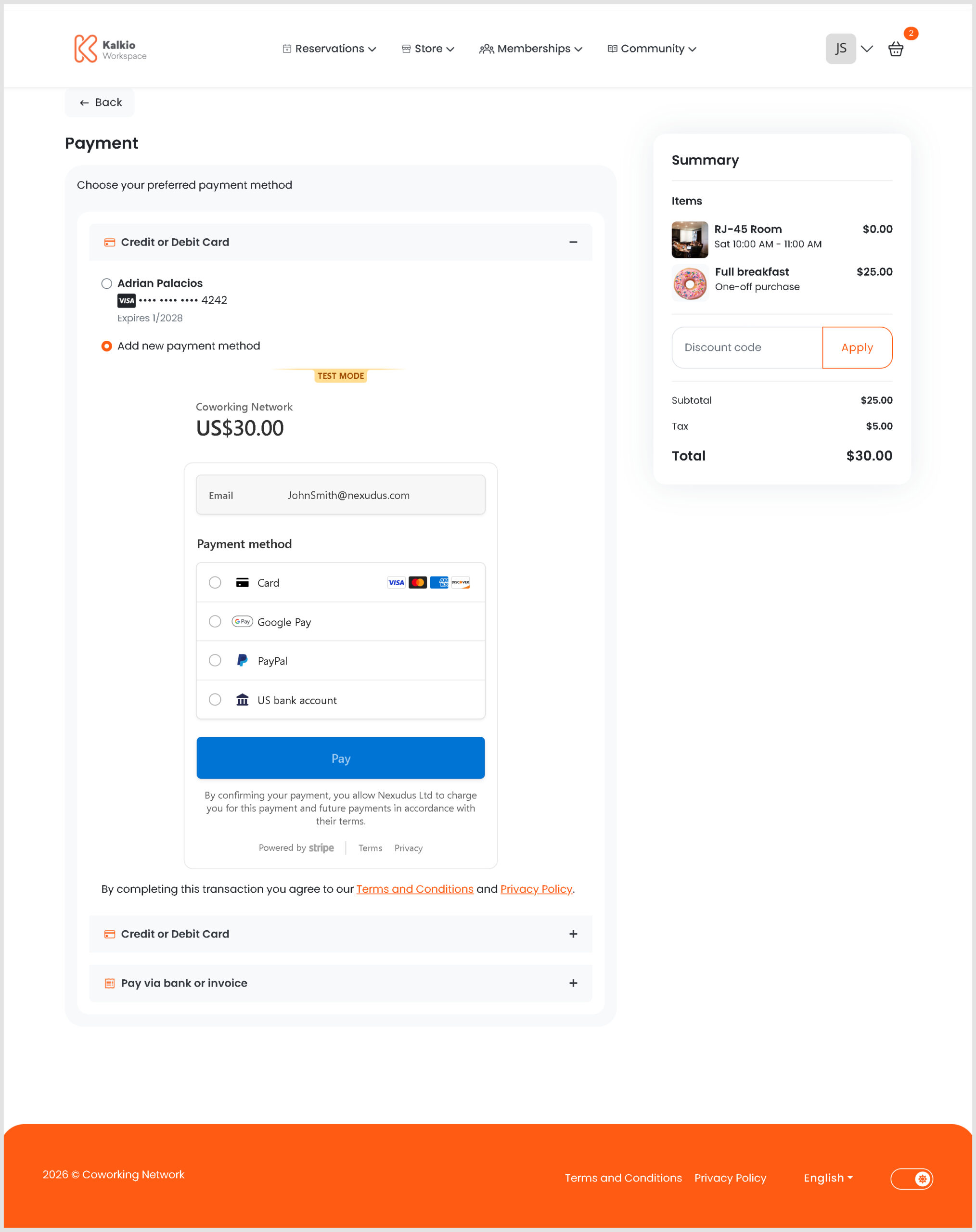
Selecting Proceed to Checkout opens the payment page with the full order summary and payment options configured for that location.
Orders with £0 / no balance due
If credits or benefits cover the full balance:
- The payment is skipped
- The order is placed automatically
After payment
Once checkout is complete, the basket is cleared automatically, the member is taken to a confirmation page, and all items are processed immediately.
Guest checkout
Customers who are not logged in can also use the cart. They will be prompted to either log in or continue as a guest before payment.
Want to know more about
how Nexudus could help your business?
We’re here to answer any questions you have.