

Dark and Light Mode Branding
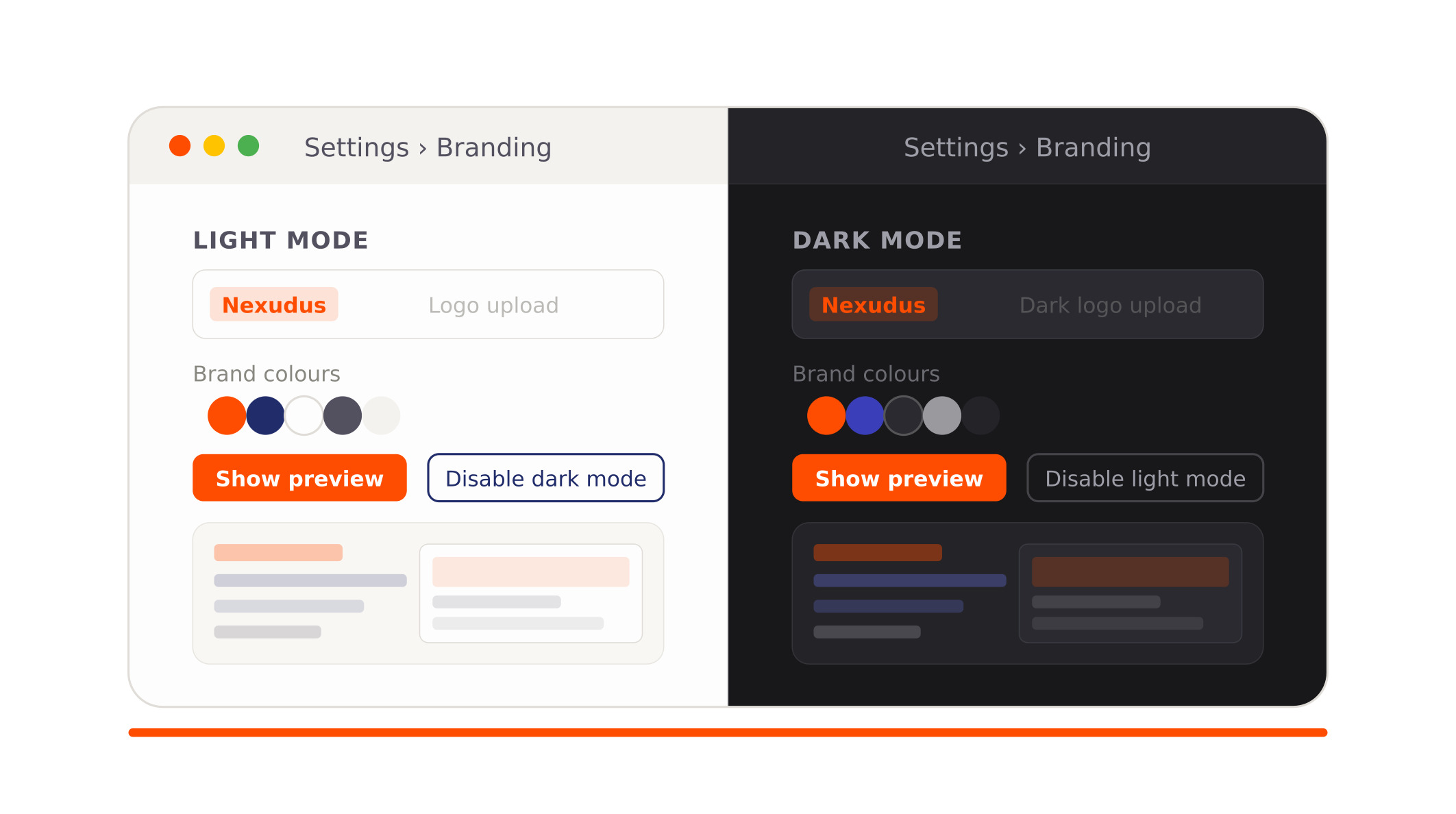
You now have more control over how the new Members Portal looks in light and dark mode. You can upload separate logos for each mode, choose which colour palette each mode uses, and disable light or dark mode entirely if it does not match your branding. These settings are managed from the Branding section of the Admin Panel.
1. Logo and Banner Moved to Branding
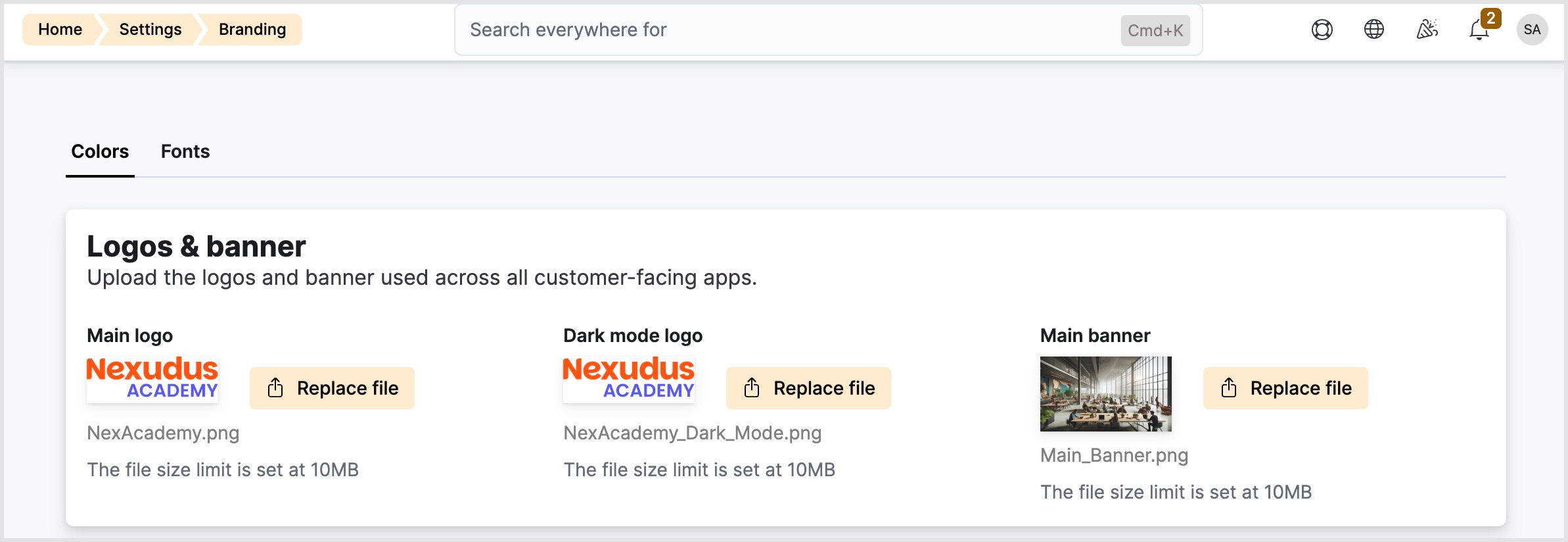
Previously, the logo and banner image were configured under general settings. Both are now in the Branding section, alongside all other visual settings.
2. Dark Mode Logo
You can now upload a dedicated logo for dark mode. When a member views the Members Portal in dark mode, the portal displays the dark mode logo instead of the standard one.
- Navigate to Settings > Branding.
- Under the logo settings, upload a logo in the Dark Mode Logo field.
- Click Save changes.
Important to Note: If no dark mode logo is uploaded, the standard logo is used in both modes.
3. Light and Dark Mode Preview Panel
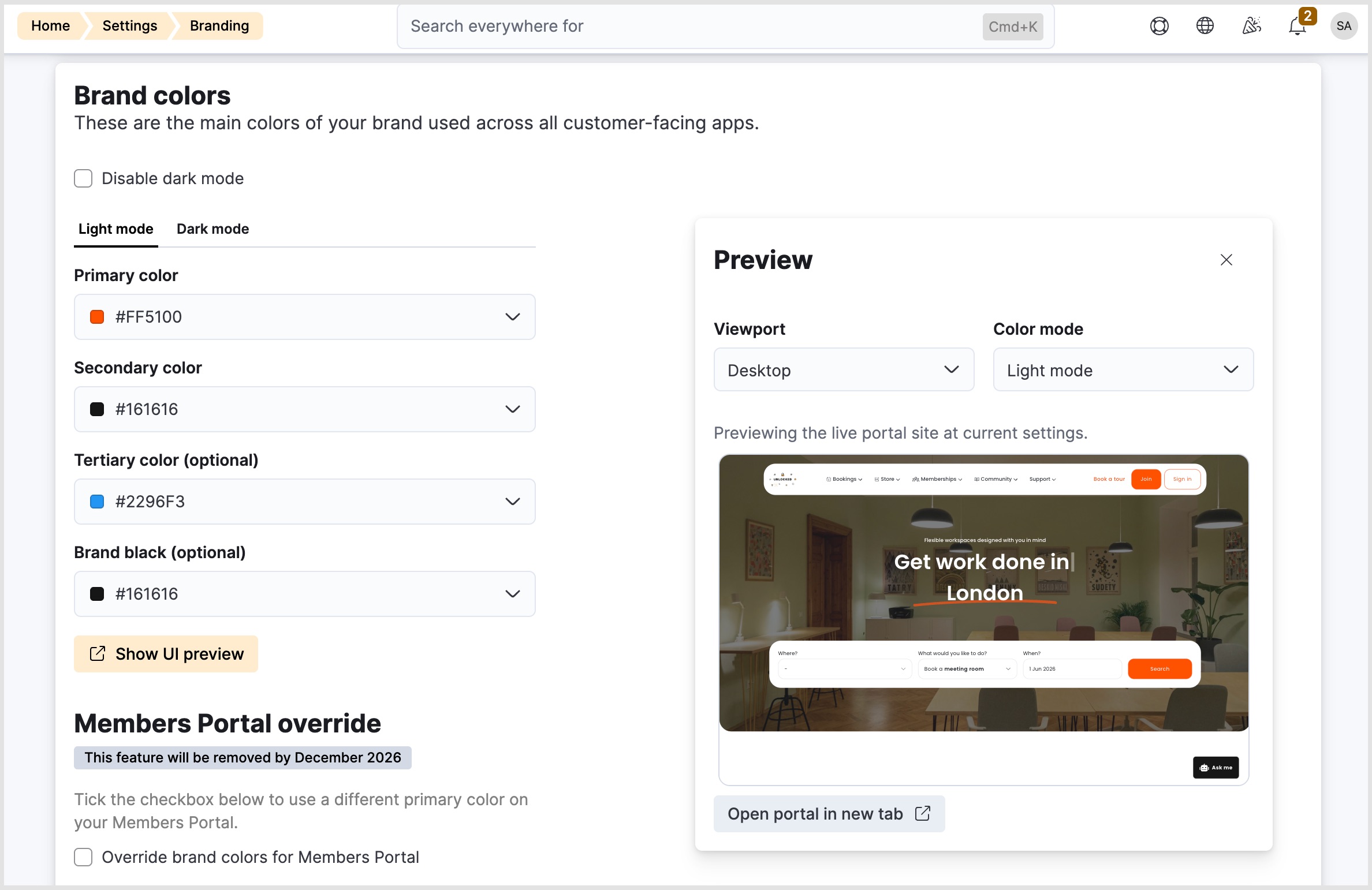
You can now set specific branding colours for light and dark mode. The preview panel allows you to see exactly how your colour and logo choices appear in the Members Portal before saving.
- Navigate to Settings > Branding.
- In the Brand colors section, select the light or dark mode tab.
- Enter the relevant information.
- Click Show UI Preview.
- Click Save changes.
You can do the same in the Status and Brand accent sections.
4. Disable Light or Dark Mode
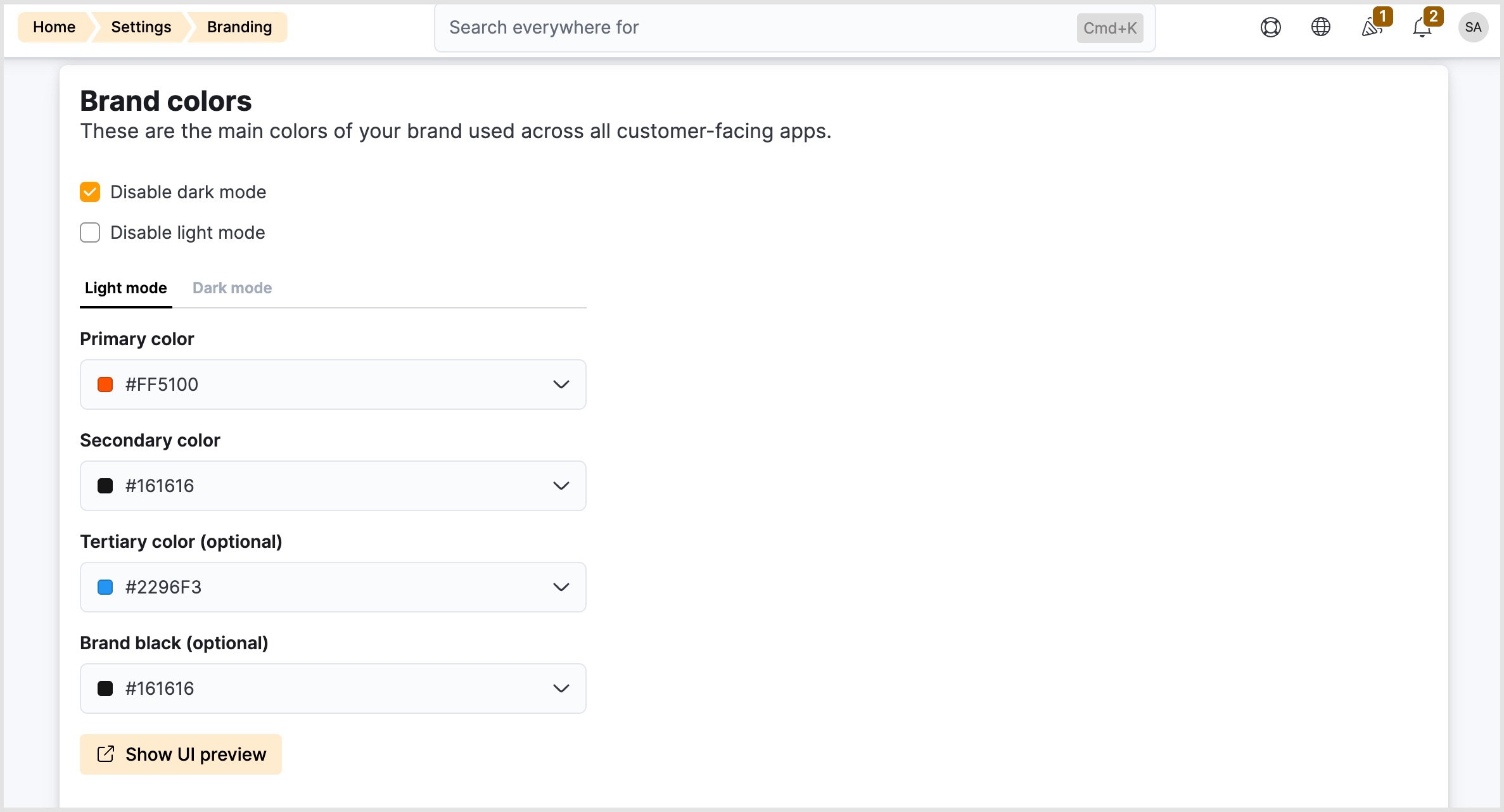
You can now disable the light or dark modes entirely for the Members Portal. For example, when dark mode is disabled, the portal always displays in light mode regardless of a member’s device settings.
- Navigate to Settings > Branding.
- Tick the Disable dark mode or Disable light mode checkboxes.
- Click Save changes.
6. URL Colour Overrides
You can now override any portal colour or mode using URL parameters. This lets the Members Portal load with different colours or a different mode than the default – for example, when the portal is embedded in an iframe or used as a widget on a third-party page.
See the documentation for more information.
Important to Note: URL colour overrides affect only the session loaded via that URL. They do not change the saved branding settings in the Admin Panel.
Want to know more about
how Nexudus could help your business?
We’re here to answer any questions you have.