

Training Team on October 19, 2026
Custom Fields on Event Tickets

What’s new
Take your Event planning to the next level by gathering the details that matter most.
Need to know a dietary requirement or Hoodie size? You can now add custom fields to event tickets during checkout! Gather the exact details you need, and easily filter your attendee list by their answers to make event management a breeze.
What you can do
- Target your questions: Custom fields can be scoped to specific events, specific ticket types, or both. That means you can ask VIP dinner guests about dietary requirements without showing the same question to general admission attendees. Leave a field unscoped, and it applies everywhere, just like before.
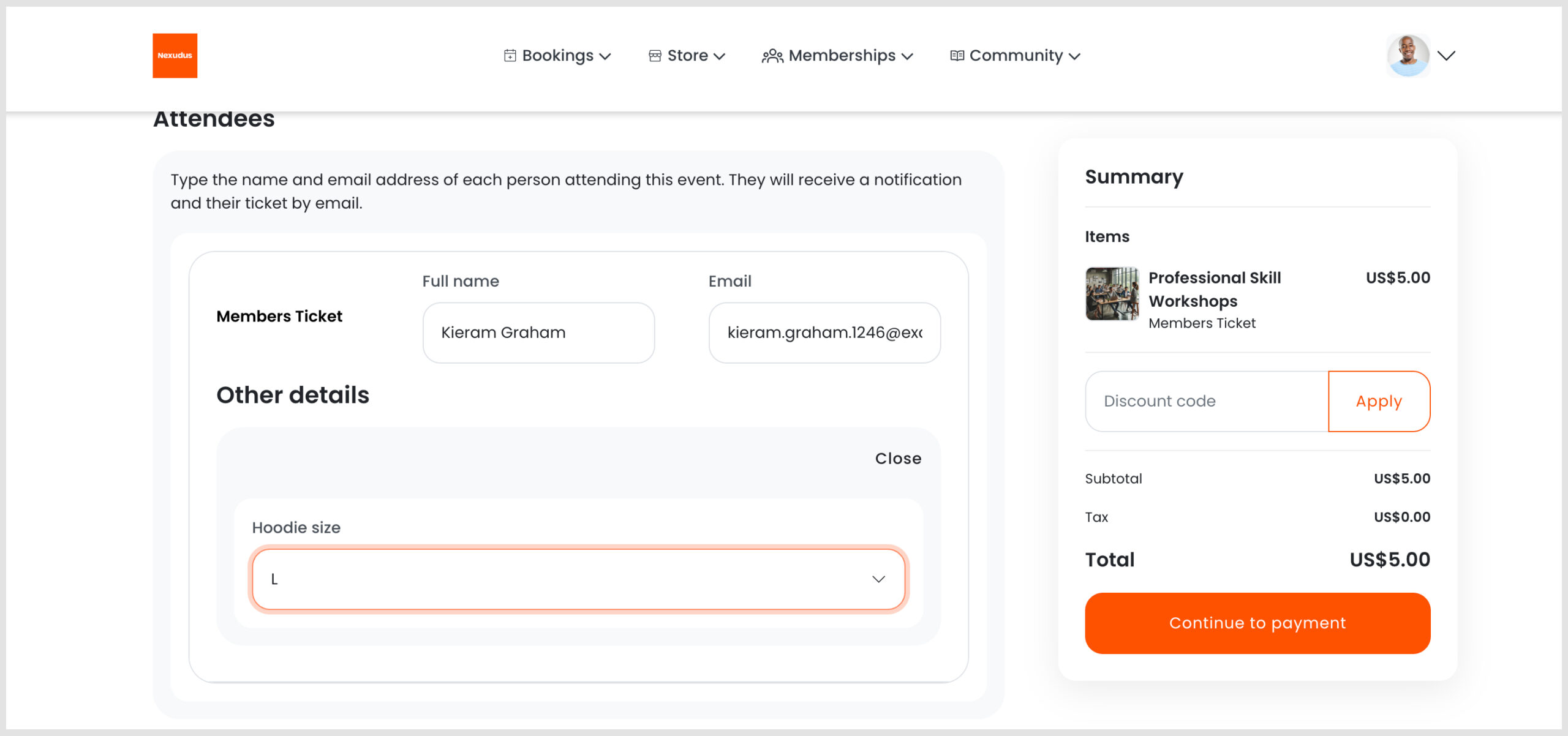
- Collect answers at checkout: Each attendee sees their relevant questions directly under their ticket details in the members portal, grouped clearly by topic. If a field is marked as required, attendees need to answer it before they can complete checkout or add the ticket to their cart.
- Add answers manually: Adding an attendee yourself in the admin panel? The same fields appear on the attendee form, scoped to the event and ticket you’ve selected.
- Filter your attendee list: Every custom field is now filterable from the event’s Attendees tab. Yes/No fields get a simple picker, dropdown fields get an options picker, and text or number fields get the matching input, so you can quickly find who ticked the box, who didn’t, or who answered a certain way.
Some important information to know
- Required fields are checked at checkout, not by the API. This works the same way as booking custom fields.
- Date fields can be answered but not filtered on yet. Filtering by date range needs further backend work.
- Historical attendees from before this update may not show an answer for unticked checkboxes. New purchases store an explicit “No” automatically, so filtering works going forward. If you need older records to match, you can edit those attendees in the admin panel to fill in their answers.
- Custom fields no longer appear on the event details form itself, since field definitions apply to attendees, not to the event.
Where to find it
- Navigate to the CRM module in your Admin Panel and select Custom Fields.
- Click the Add a Custom Field button.
- Select Event as your Record Type. From here, you can choose exactly which events and ticket types the field applies to, and toggle whether it appears on the sign-up form.
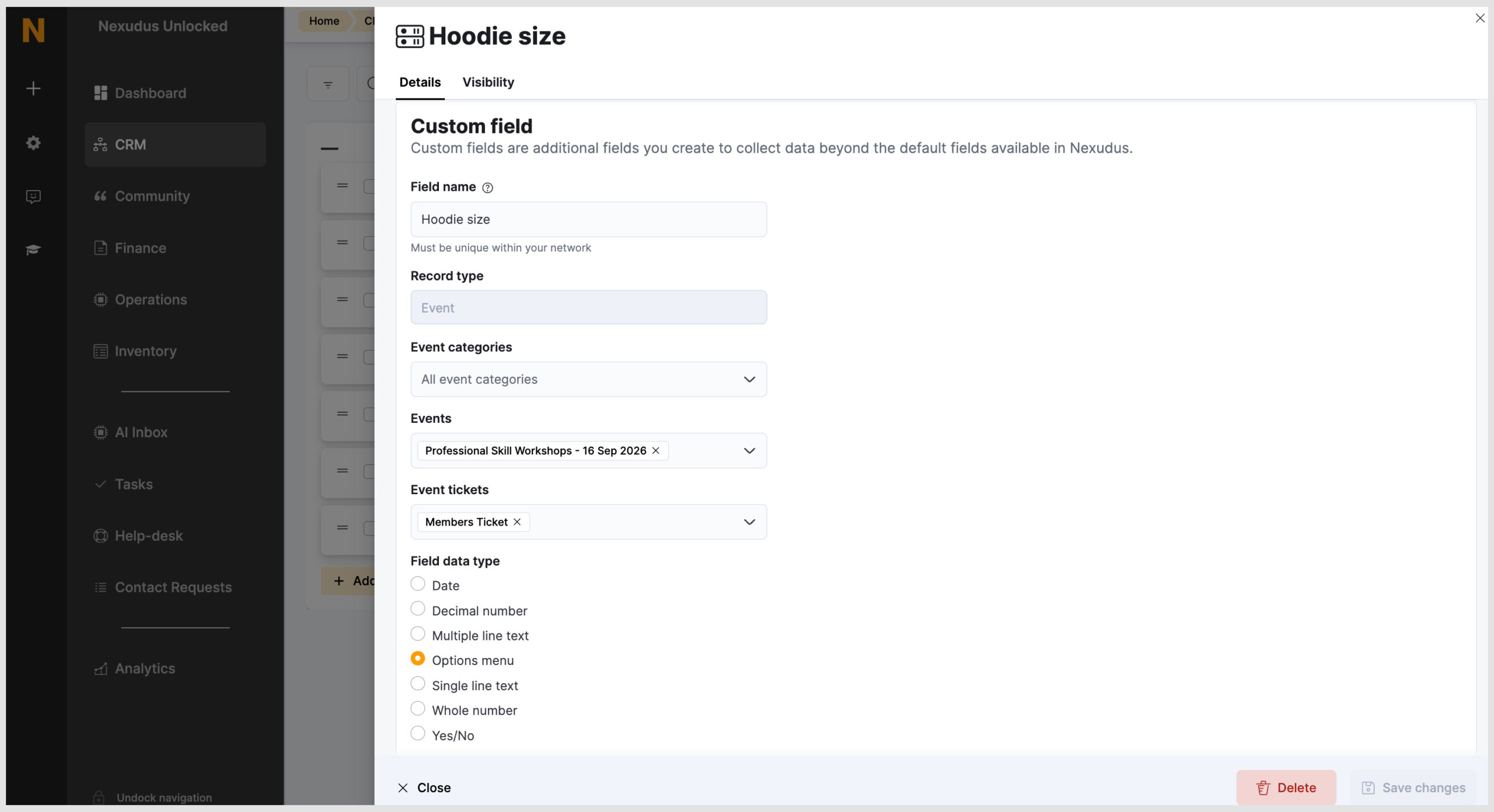
Once saved, your custom questions will instantly appear on your event sign-up form exactly as you configured them!
Want to know more about
how Nexudus could help your business?
We’re here to answer any questions you have.