

Booking Check-Ins and Outs
Admins can now check their customers and booking visitors in and out for bookings and accurately see who is currently checked in.
Previously, it was only really possible to check someone in if they had a valid pass.
When a booking is placed, the booking owner will receive a booking confirmation email with a unique PIN code and QR code. This information is unique to the booking and in the future, the customer can use this information to check themselves into the booking on the NexIO app. Admins can also manually check in a booking owner on the Admin Panel.
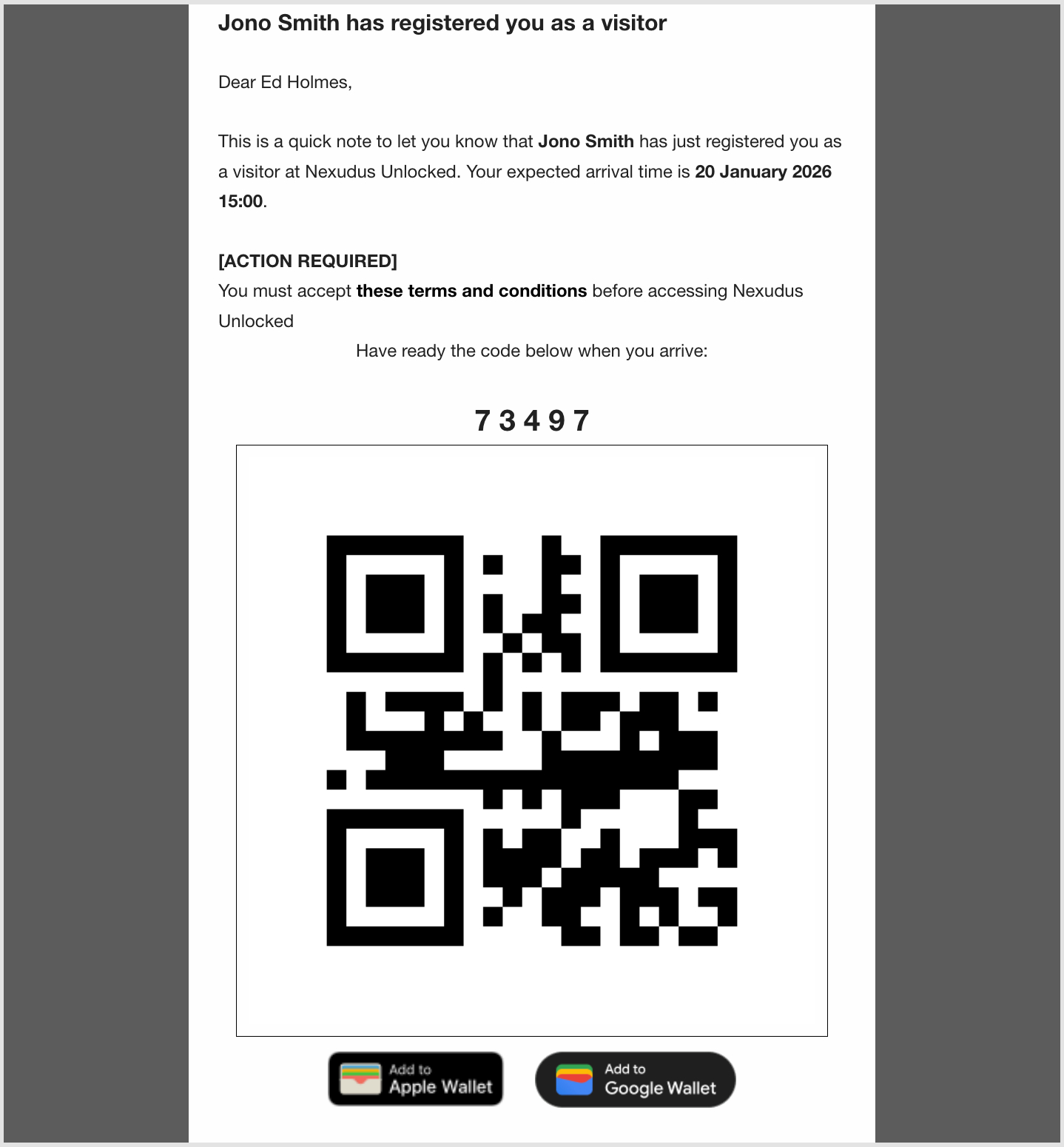
Booking visitors who are pre-registered will also receive an email with a unique PIN code and QR code, which they can then use to check themselves in on NexIO. Just like with booking owners, admins can manually check in booking visitors.
How admins can do a manual check-in
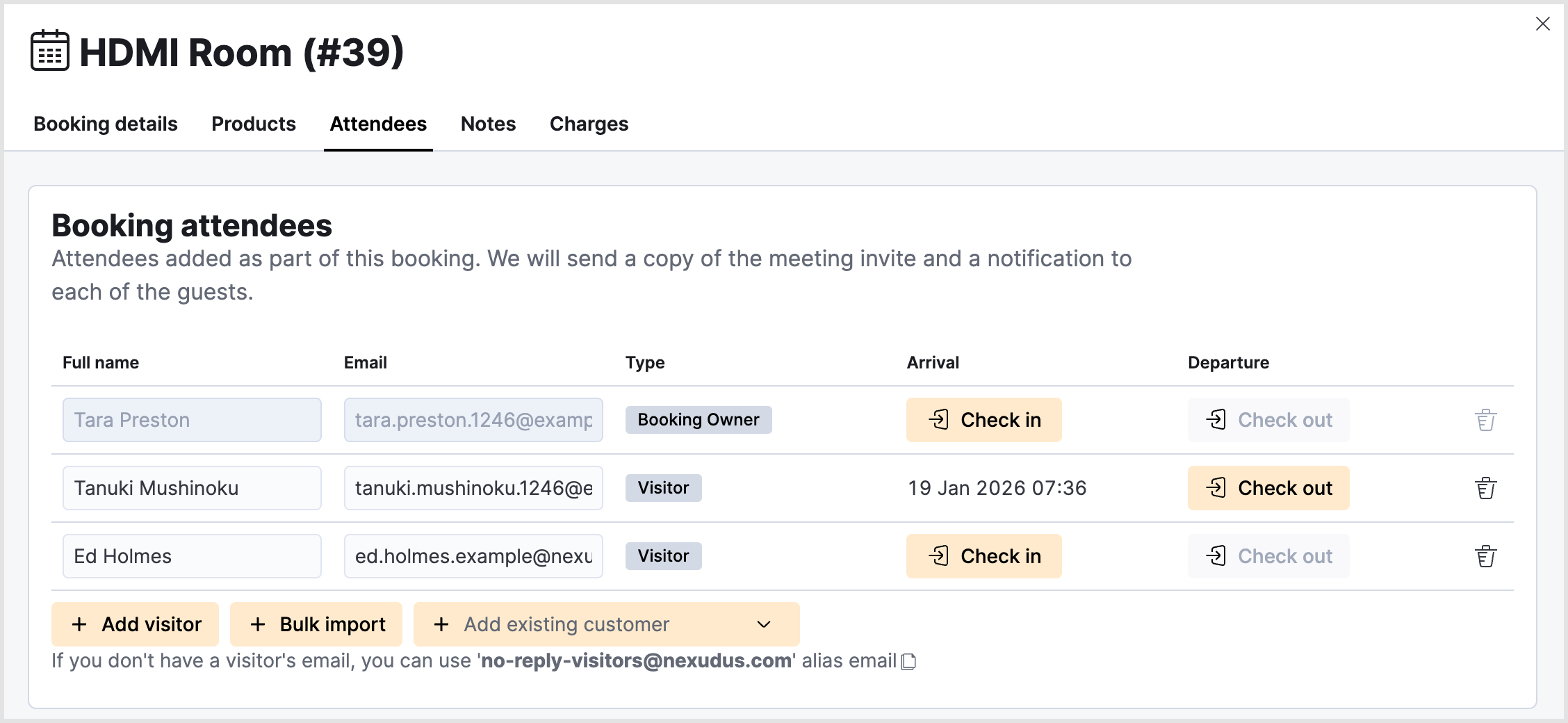
Let’s take a look at how an admin can manually check in a booking owner or visitor via the booking.
- Open the booking on the Admin Panel.
- Navigate to the Attendees tab.
This was previously called ‘Guests’. - Simply click Check in next to the relevant attendees.
- Click Save changes.
Adding a visitor
Admins can also register additional booking visitors by clicking + Add visitor. If the visitor’s email address is unknown, admins can use: no-reply-visitors@nexudus.com. The booking owner’s email address cannot be used as a visitor’s email address. If applicable, the visitors will be sent a visitor registration confirmation email. They will not receive the booking confirmation email.
Admins can also check out booking owners and visitors from the booking information screen by clicking Check out. Checked-in booking owners will also be automatically checked out after the specified daily cut-off time of the location.
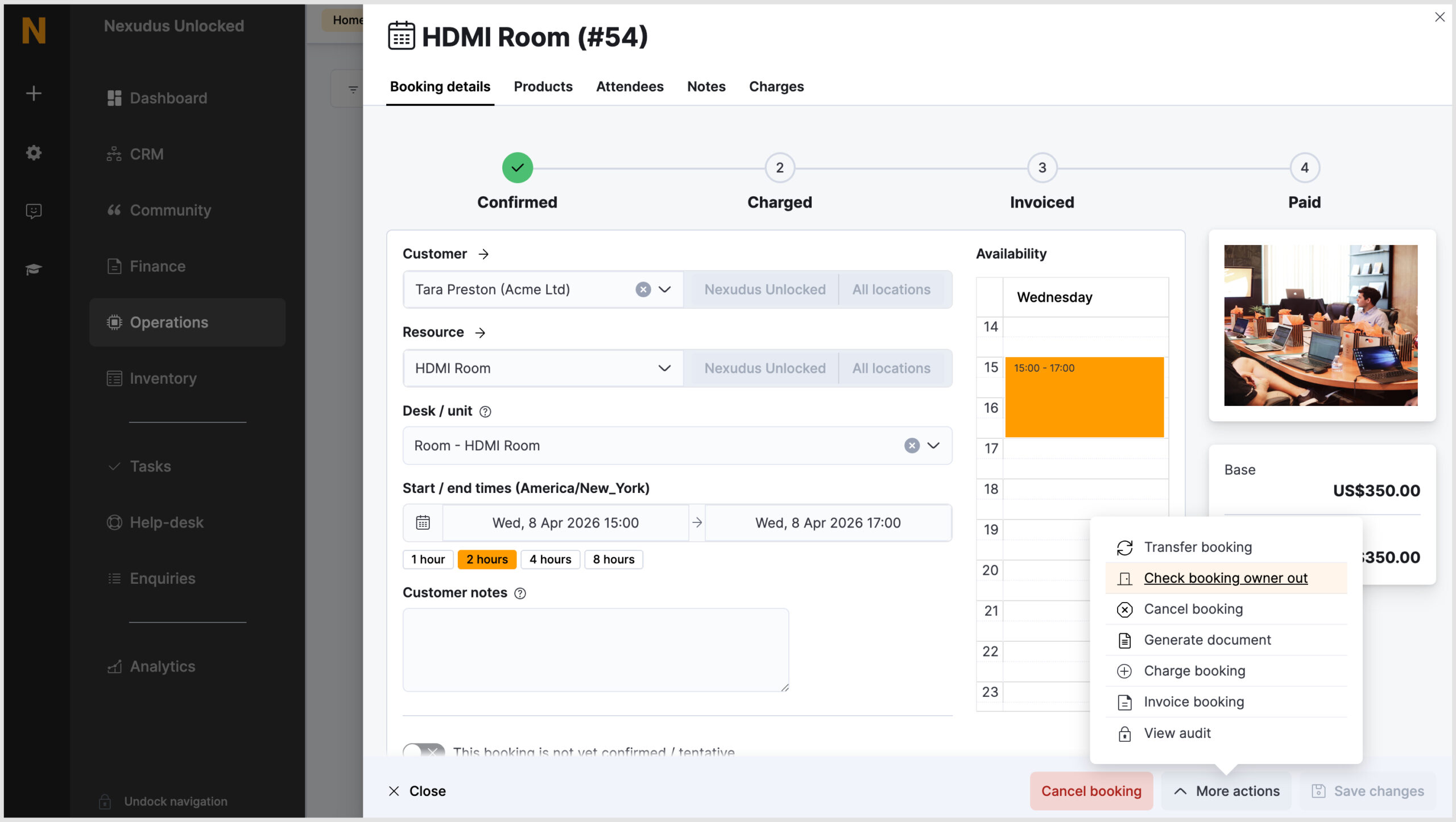
Admins can also check out booking owners through the More Actions menu of the booking screen.
Viewing visitors and customers on site
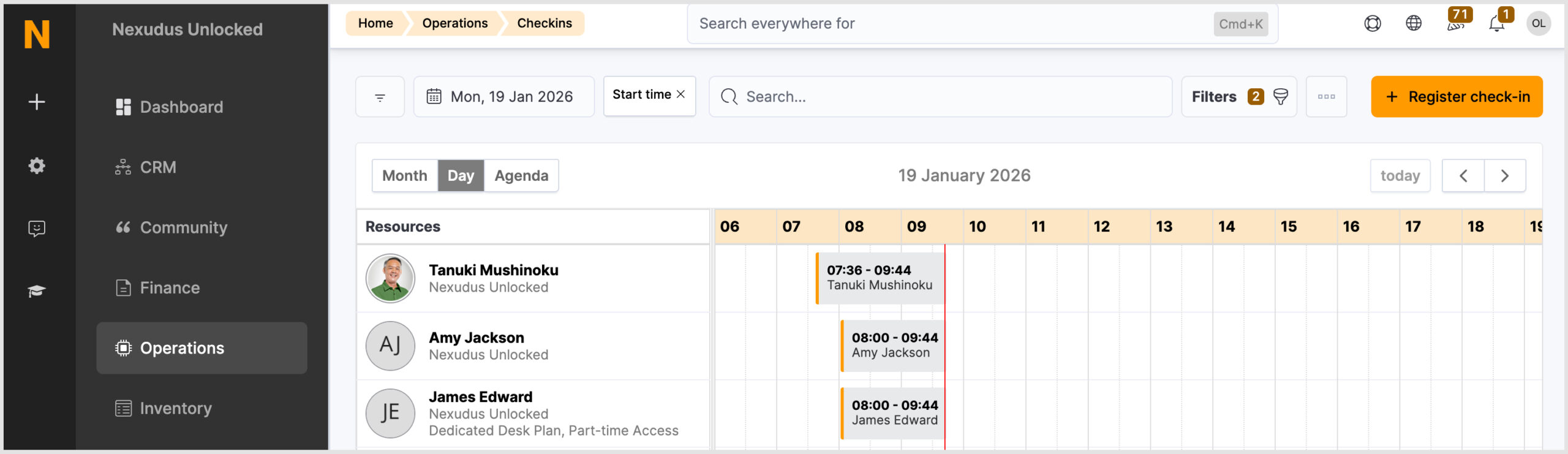
Admins can easily view who is on site from the Customers on site module. The only change here is that you’ll be able to see booking owners and some booking visitors.
Register known customer as visitor setting
Whether booking visitors appear in the Customers on site module or the Visitors module depends on the ‘Register known customer as visitor when added as attendees’ setting and whether the visitor is a known customer.
The Register known customer as visitor setting is DISABLED.
When known customers check in for a booking, they will appear in the Customers on site module.
The Register known customer as visitor setting is ENABLED.
All visitors, regardless of whether they are in the system as a known customer, will appear in the Visitors module as the system is registering the known customer as a standard visitor.
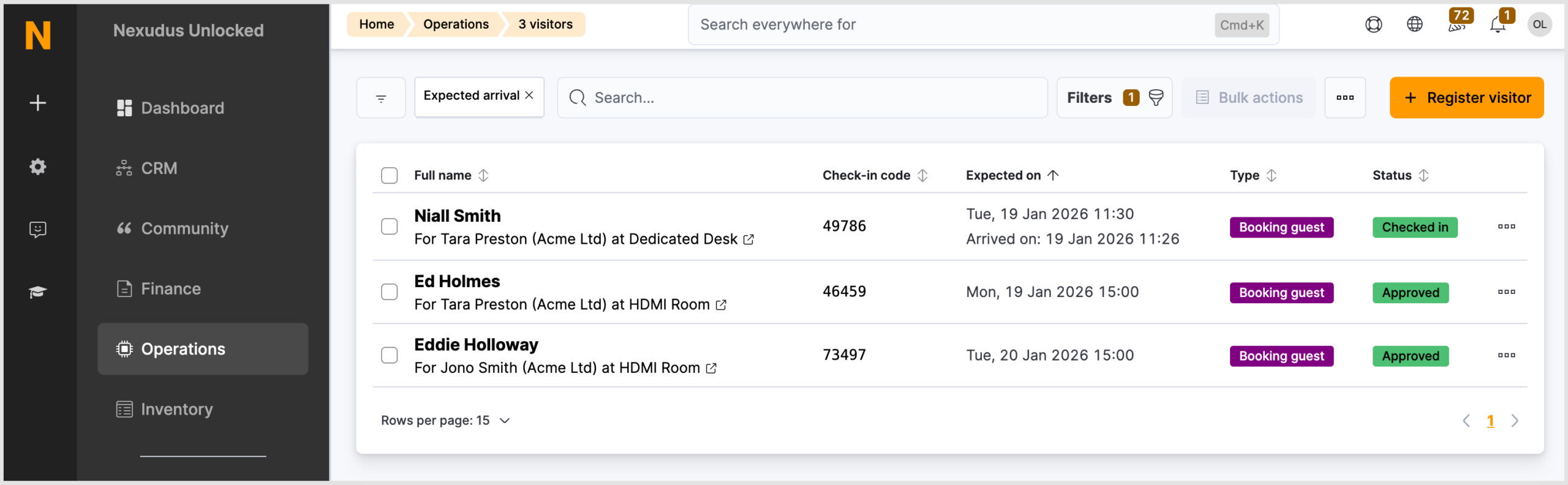
From the Visitors module, you’ll also see what time a visitor arrived and departed.
Reports
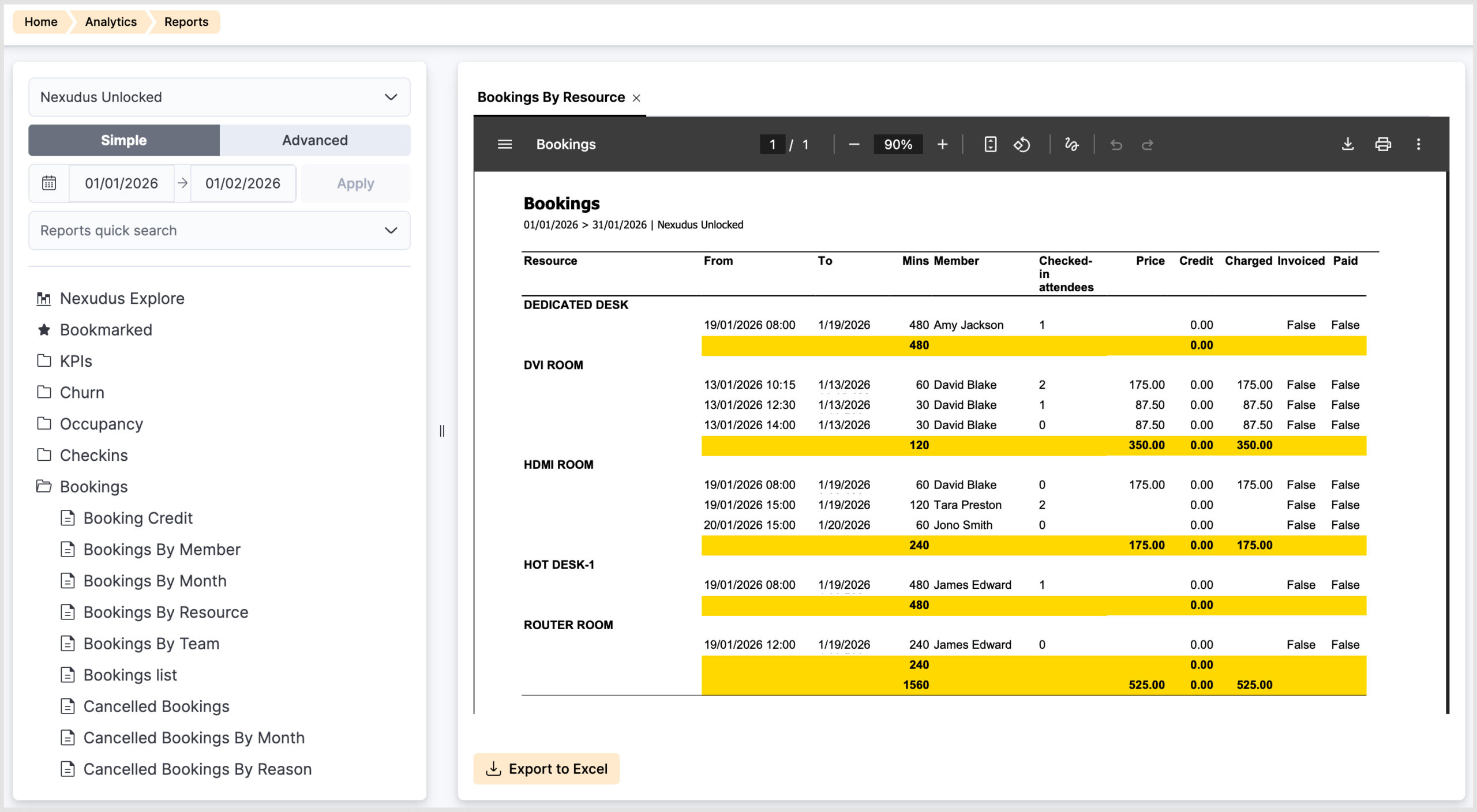
The bookings by resource report has been updated to show the number of checked-in attendees.
Want to know more about
how Nexudus could help your business?
We’re here to answer any questions you have.