

Payment Methods page now available in Members Portal v5
What’s new in Members Portal v5
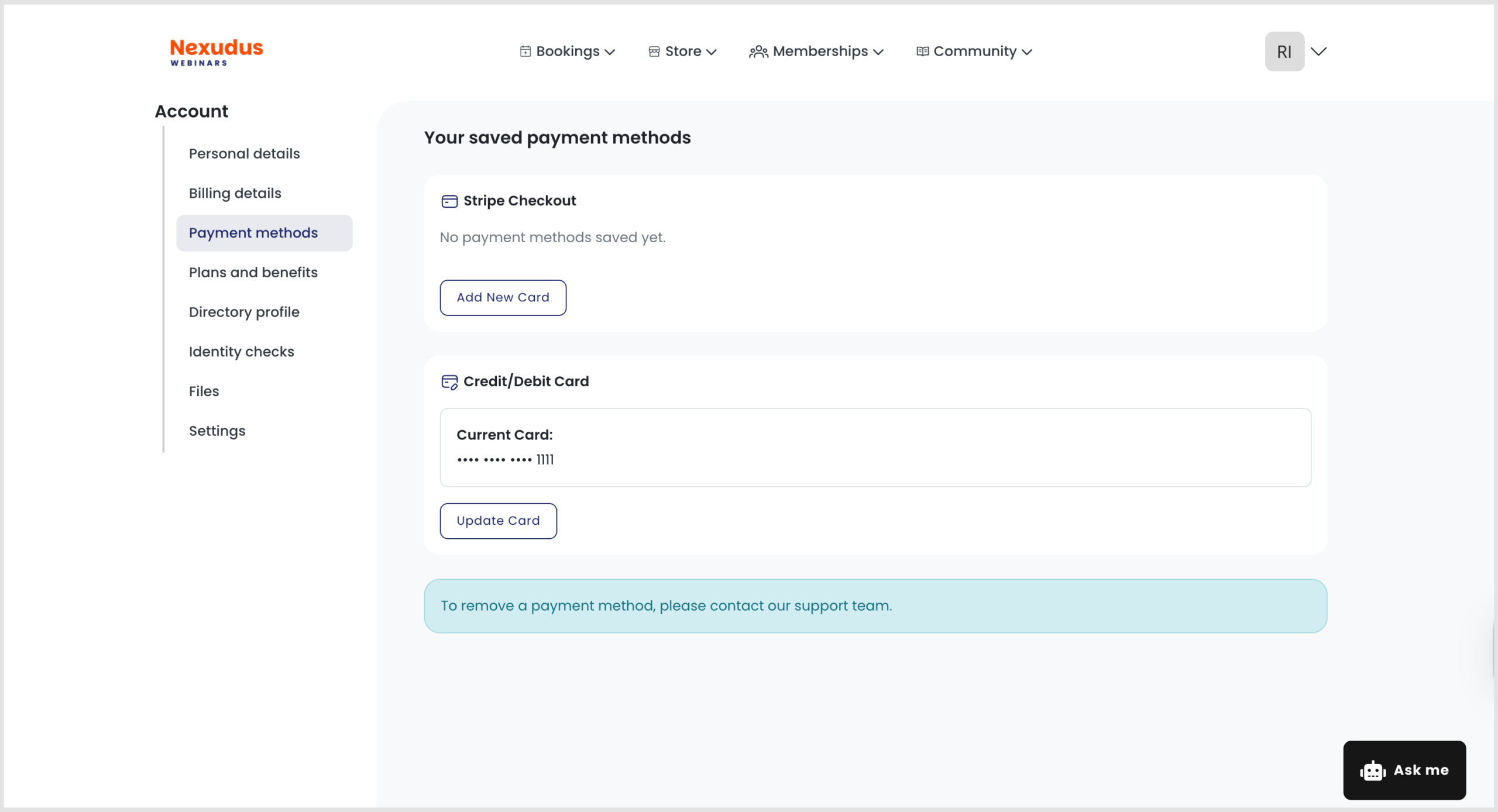
We’ve introduced a new Payment Methods page where members can securely view and manage their saved payment information in one place. The page supports Stripe, Spreedly, and GoCardless, and only displays the payment providers enabled for your location.
Key Benefits
- One Central Location: Members can manage (view, add and update) all supported payment methods from a single page within the portal. They can link or update bank accounts for direct debit payments.
- Provider-Specific Experiences: Each payment provider uses the most secure and optimised experience available:
- Stripe uses embedded checkout
- Spreedly uses secure card tokenisation
- GoCardless uses secure bank authorisation flows
- Automatic Updates: Payment information refreshes automatically after changes are made, ensuring members always see the latest status.
- Consistent User Experience: All payment methods are presented using a clean, consistent design across the portal.
Stripe Payment Methods
If Stripe Checkout is enabled, members can:
- View all saved payment cards linked to their account
- Add multiple payment methods
- See card details (Card brand, Last 4 digits and Expiration date)
When adding a new card, members are redirected to Stripe’s secure embedded checkout experience, ensuring payment information is handled safely and securely. Once a card is added, the list automatically refreshes and displays the new payment method.
Spreedly Payment Cards
If Spreedly is enabled, members can:
- View the last 4 digits of their currently stored card
- Add or update their payment card using an inline payment form
Please note that Spreedly supports one stored card per member. Adding a new card will automatically replace the existing card on file.
GoCardless Bank Accounts
If GoCardless is enabled, members can:
- View whether a bank account is currently linked
- Connect a new bank account
- Update an existing bank account
The connection process opens in a secure GoCardless pop-up window. Once authorisation is complete, the page automatically refreshes to display the updated status.
Removing Payment Methods
For security reasons, members cannot remove payment methods directly through the Members Portal. Instead, members will see a notice advising them to contact your support team if they wish to remove a saved card or bank account. This helps prevent accidental removal of payment methods that may be linked to active subscriptions, recurring invoices, or upcoming payments.
If a member requests the removal of a payment method, operators should:
- Verify the member’s request.
- Check for any active subscriptions or pending payments.
- Remove the payment method through the Admin Dashboard once it is safe to do so.
Configuration
The Payment Methods page automatically displays the payment providers enabled in your location settings. If no supported payment providers are enabled, members will only see the support contact notice.
Want to know more about
how Nexudus could help your business?
We’re here to answer any questions you have.