

Nexudus AI Assistant
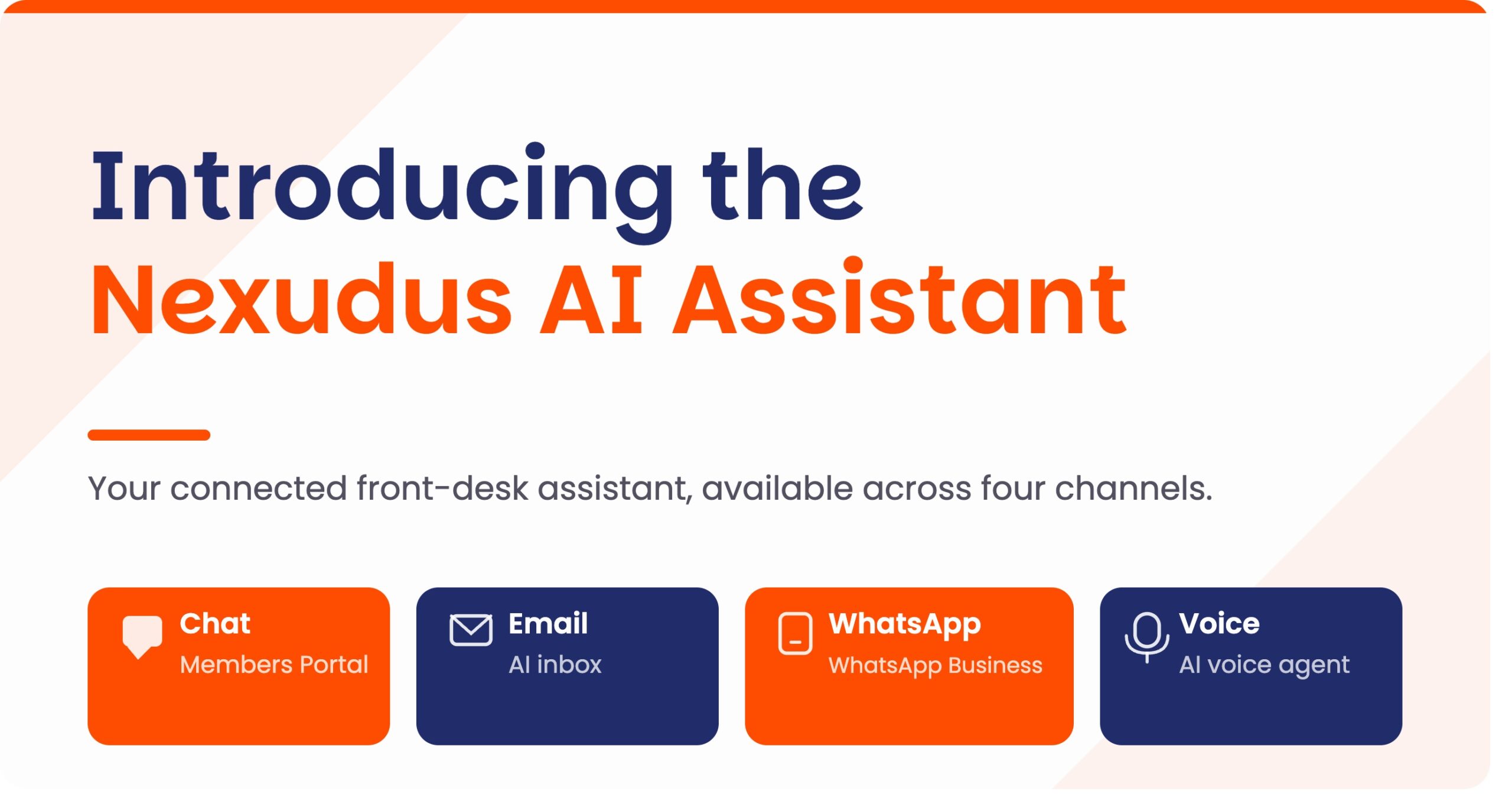
The Nexudus AI Assistant is a connected front-desk assistant powered by your space’s own Nexudus data. It helps prospects and members get answers, take action and complete tasks across four channels: Chat (Members Portal widget), Email, WhatsApp and Voice.
The assistant can help with:
- FAQ and information – answering questions from published FAQ content
- Locations and resources – helping users find locations, rooms, desks and amenities
- Bookings – helping members create, view, modify and cancel bookings
- Day passes – showing and selling day pass options
- Membership plans – helping prospects find and sign up for a plan
- Private offices and tours – showing available offices and generating tour links
The assistant provides answers based on your space data. It does not invent answers when no matching data is available.
Enabling channels
The AI Assistant operates across four channels. All four share the same capabilities, data and visibility rules.
- Chat – floating widget in the latest version of the Members Portal
- Email – conversations start from the space’s AI email address
- WhatsApp – conversations start from the space’s WhatsApp number
- Voice – conversations between the customer and an AI agent.
As an operator, you can control which channels are active per location.
The set-up outside of Nexudus is slightly different depending on the channel. For example, for the WhatsApp channel, you’ll need a paid Twilio account and a WhatsApp Business Account.
Follow these guides to ensure you complete the set-up outside of Nexudus correctly:
Once you’ve created the appropriate accounts, you’ll need to enable the channels and connect the accounts in the Nexudus Admin Panel.
Simply navigate to Settings > Channels, enable the relevant options and click Save settings.
Preparing data for the assistant
The assistant draws on existing Nexudus records. You should review the following to ensure the AI Assistant is drawing on the most up-to-date information:
- FAQ content – publish and keep FAQ articles current.
- Locations, rooms and resources – ensure listings, amenities and availability for your resources are accurate. For example, confirm that Meeting room A has the correct capacity, amenities and booking settings configured.
- Booking settings – confirm booking rules and availability windows are correct.
- Products and plans – review each item and configure AI visibility (see the section below).
Configuring AI visibility
For each product, plan and resource, you can configure the following AI-specific fields:
- Available to AI – whether the assistant can mention this item
- Show price to AI – whether the assistant can display the price
- Price for AI – an AI-specific price, useful for promotions or channel-specific offers
- Notes for AI – additional context the assistant uses when describing the item
There are two places you can configure AI visibility: from the Inventory module or Settings > Products, plans & desks.
- In Inventory > Plans, open a plan record and navigate to the Plan details tab.
- Tick the Available to AI agents checkbox.
- Add Notes for AI agents to provide useful context.
- Optionally, toggle Show price for AI on.
- Enter a Price for AI if different from the standard price.
- Click Save changes.
The same AI visibility fields apply to products and resources. Not every item should be visible to the AI — review each item carefully before enabling it.
Note: For example, to make the Hot-desk plan (£250/month) available in the AI with a promotional price: toggle Available to AI on, set Price for AI to the relevant amount, and add Notes for AI — for example, “Includes unlimited hot drinks and locker access.”
AI conversations
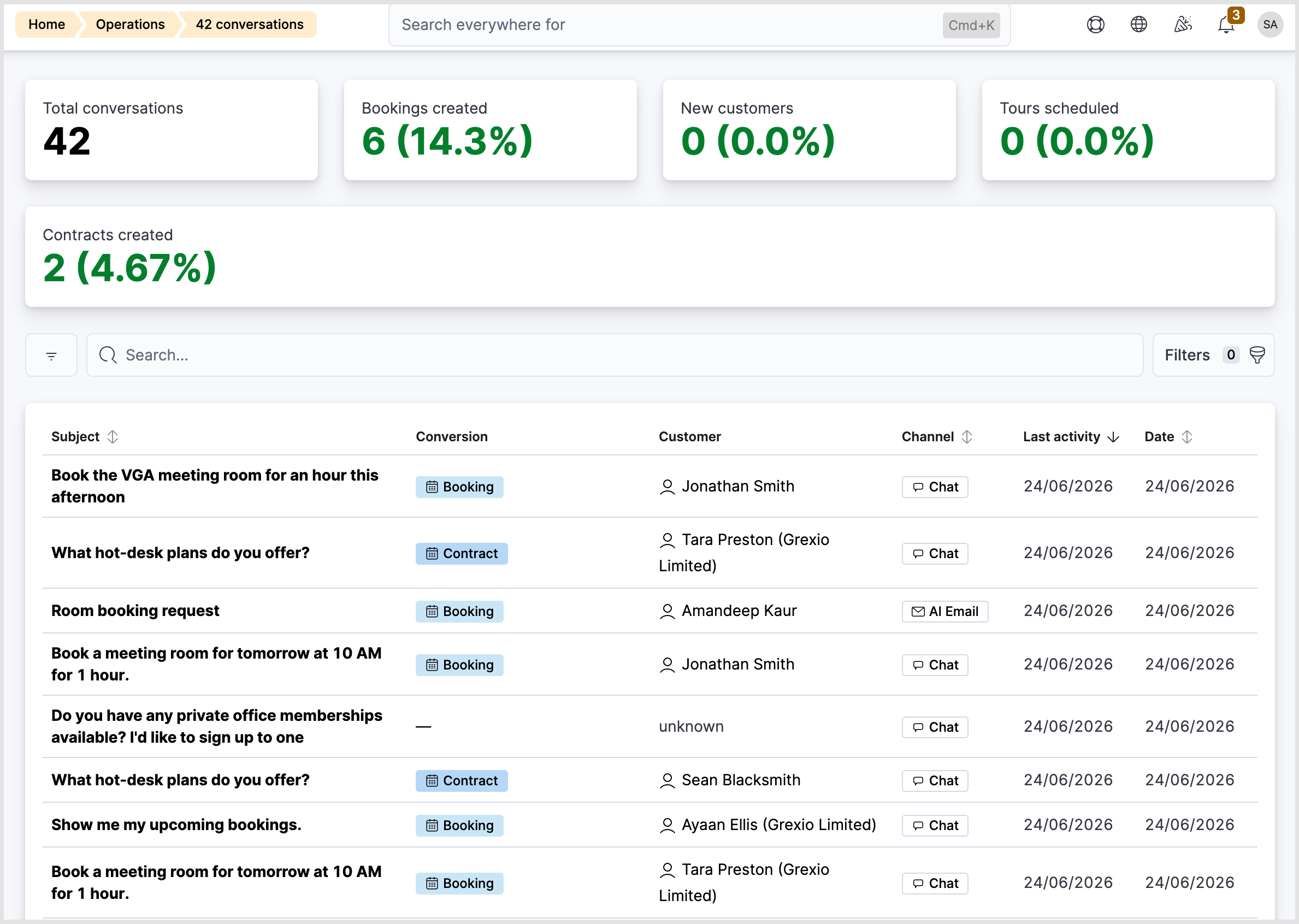
Navigate to Operations > AI Conversations to monitor all conversations across Chat, Email, WhatsApp and Voice.
Each row in the list shows:
- Opening message
- Channel (Chat / Email / WhatsApp/Voice)
- Conversion badges
- Identified user
- Date
Click any conversation to view the full exchange. Conversion badges link directly to the relevant Nexudus record.
The assistant records the following conversion outcomes:
- Tour booked
- Customer created
- Contract created
- Booking created
- Day pass purchased
Important to Note: These are independent outcomes — a single conversation can produce multiple badges. For example, a prospect signing up for the ‘Hot-desk’ plan (£250/month) may generate both a “Customer created” and a “Contract created” badge in the same conversation.
Important to Note: For tour enquiries, the full AI conversation is visible on the Visitor record. This gives the team context before the visit: what the prospect asked about, which offices they were interested in and any requirements they mentioned.
Conversation window
Each conversation has a unique session ID. How long the session ID (aka conversation) remains active depends on the channel being used. For example, a WhatsApp conversation remains active for 24 hours. After 24 hours, the customer can still use the same conversation on their app but a new session ID and record will be created in the Admin Panel.
Click here for more information.
Want to know more about
how Nexudus could help your business?
We’re here to answer any questions you have.