

Deposit Management in the Admin Panel
Improvements to deposit management in the Admin Panel
We’ve introduced several improvements to ensure more accurate deposit configuration, reporting, and usability.
- New Deposits tab on customer accounts: A dedicated Deposits tab has been added to the customer account, allowing admins to easily view and manage all deposits associated with a customer in one place.
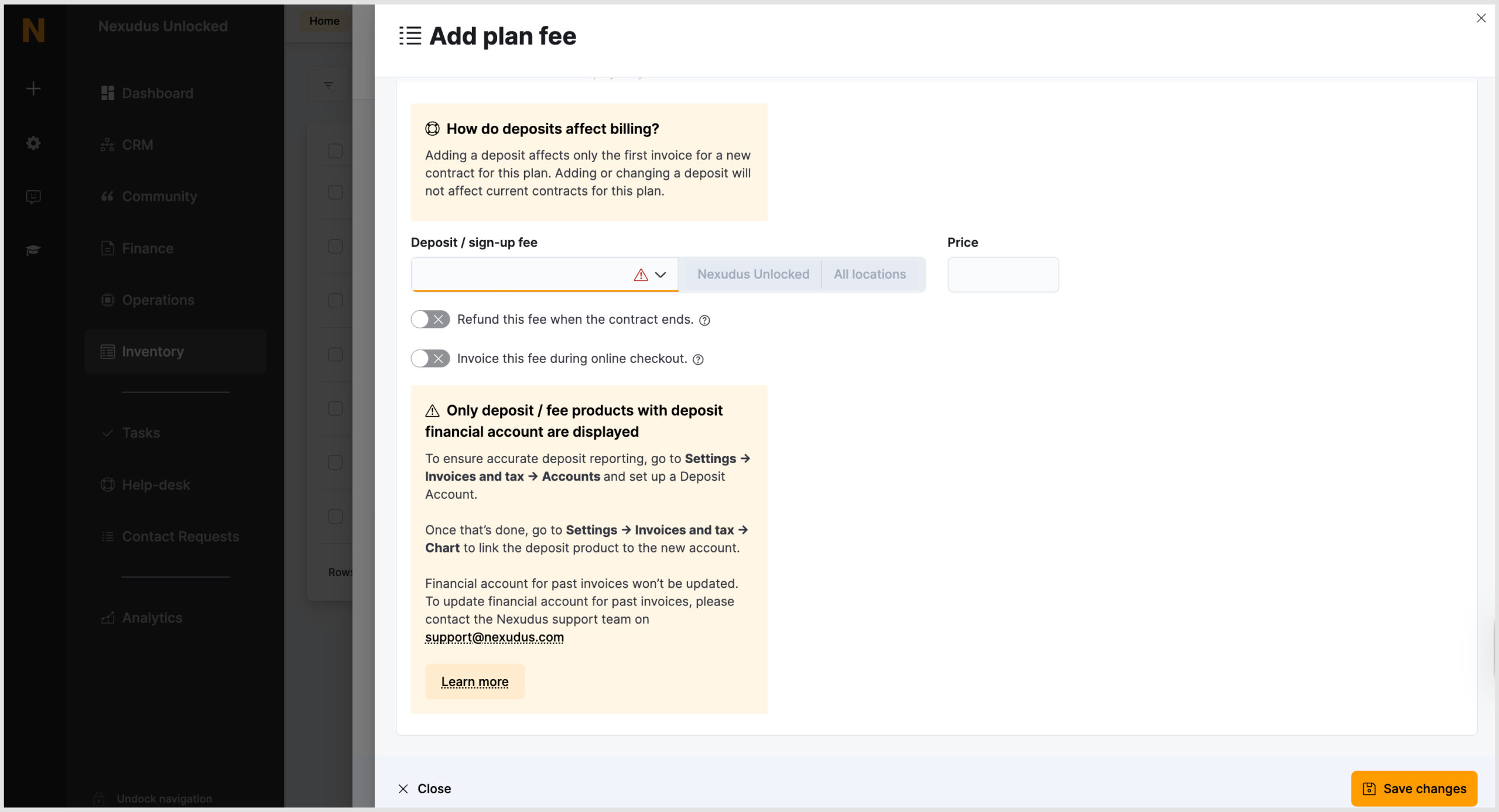
- Deposit product filtering: When adding the deposit / sign-up fee, the product dropdown now only displays products that are linked to deposit financial accounts, ensuring that only correctly configured deposit products can be selected.
- Improved guidance when linking deposits to plans: Updated messaging now helps guide admins when linking deposit products to plans, ensuring deposits are configured correctly.
- Deposit product creation wizard: A new deposit product wizard is now available to simplify the creation of deposit products and help ensure the correct financial account configuration during setup.
What is a deposit?
A deposit is a payment made in advance that acts as security for a service or contract. It is typically held by the operator and may be refunded or retained, depending on the terms.
Nexudus supports two main deposit types:
- Refundable deposit: Returned to the customer when the contract ends, provided the terms of the agreement are met.
- Non-refundable deposit: A one-time payment that is not returned, such as sign-up fees, cancellation fees, or administrative costs.
New Deposits tab on customer accounts
We’ve introduced a Deposits tab in the customer account to give operators a clearer, faster way to view and manage all deposits associated with a customer.
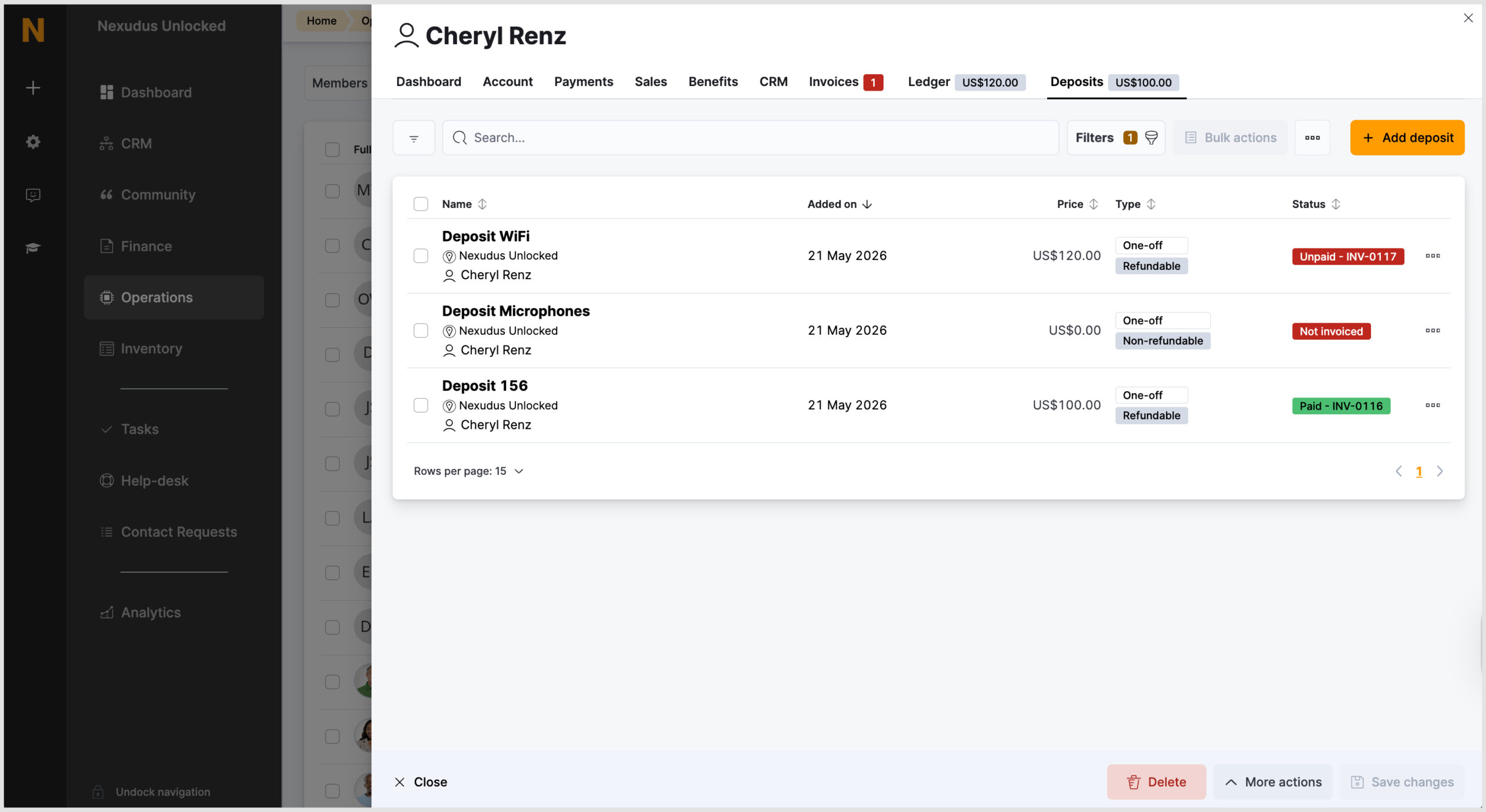
This tab provides a consolidated view of all deposits paid by a customer to date. It is particularly useful for customers who may have multiple deposits.
For example:
- Customers subscribed to multiple plans, each requiring its own deposit
- Equipment or asset deposits covering furniture, equipment, or other assigned goods
- Split payments, where a deposit is paid across multiple transactions
- Different deposit types, including both refundable deposits and non-refundable fees
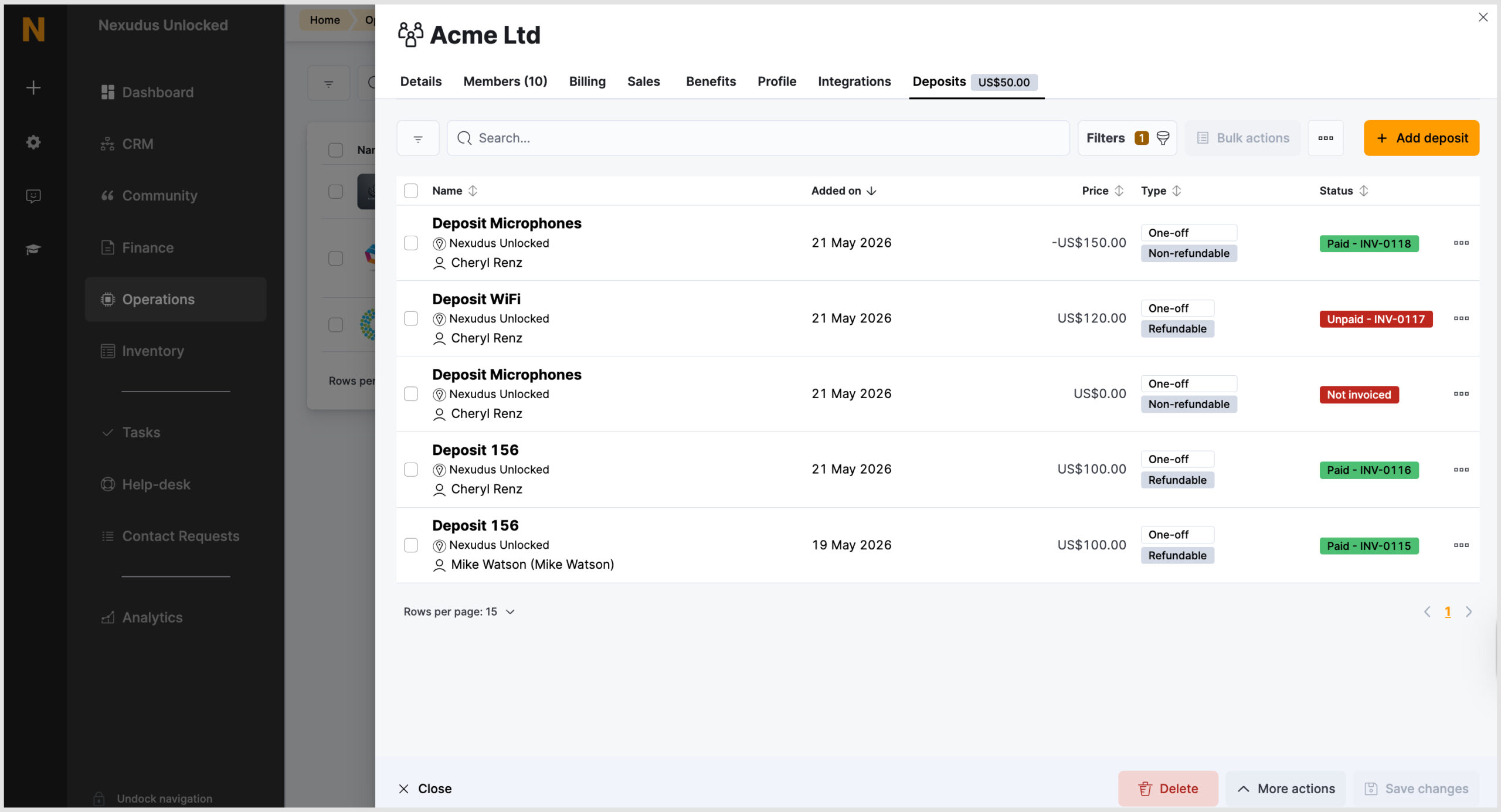
You can also view the Deposits tab in the team record, where you can view which member has deposits and some additional details.
Creating a deposit
All deposits are created as products. To simplify the process, a deposit product wizard is now available.
You can access this by going to Inventory > Products > Add Product > Deposit.
Alternatively, deposit products can still be created manually from scratch.
Deposit financial account requirement
To ensure accurate reporting, deposit products must be linked to a Deposit financial account.
To set this up: Go to Settings > Invoices and tax > Accounts and click + Add account to create a Deposit Account.
Then navigate to Settings > Invoices and tax > Chart and link the deposit product to this account.
If you create a deposit product using the wizard, you will have the option to create and link the financial account during the setup process.
Adding a deposit
There are two main ways to add a deposit.
- Through a Contract: You can add a deposit through a contract (Navigate to the Finance module > Contracts> Add Contract).
A deposit may be included by default if the plan is set up that way. Alternatively, you can add it manually in the Deposit tab.
For more information on creating a deposit, click here.
When adding deposits, a message will inform users that only deposit or fee products linked to a deposit financial account will be displayed.
2. From the Deposits Tab: Deposits can also be added directly from the Deposits tab in the customer record.
Within this tab, operators can quickly view and manage deposits using the Deposit view, which makes it easier to filter and add deposit products.
Each deposit clearly displays its status, including:
- Invoiced
- Not invoiced
- Paid (with invoice number)
- Unpaid (with invoice number)
Deposit entries also specify:
- Deposit type (refundable or non-refundable)
- Whether the deposit is one-off or repeating
From the Finance tab on the Dashboard, you can easily see how much is held in deposits for the selected location.
Want to know more about
how Nexudus could help your business?
We’re here to answer any questions you have.