

Training Team on June 15, 2026
Bulk Edit Improvements
Improvements in the Bulk Edit functionality
We have enhanced the Bulk Edit functionality to make large-scale updates more efficient and transparent. Key improvements include reducing errors, offering better filtering options, providing a preview of affected records, and ensuring edits are processed in the background with clear status updates.
Bulk Edit settings
To begin:
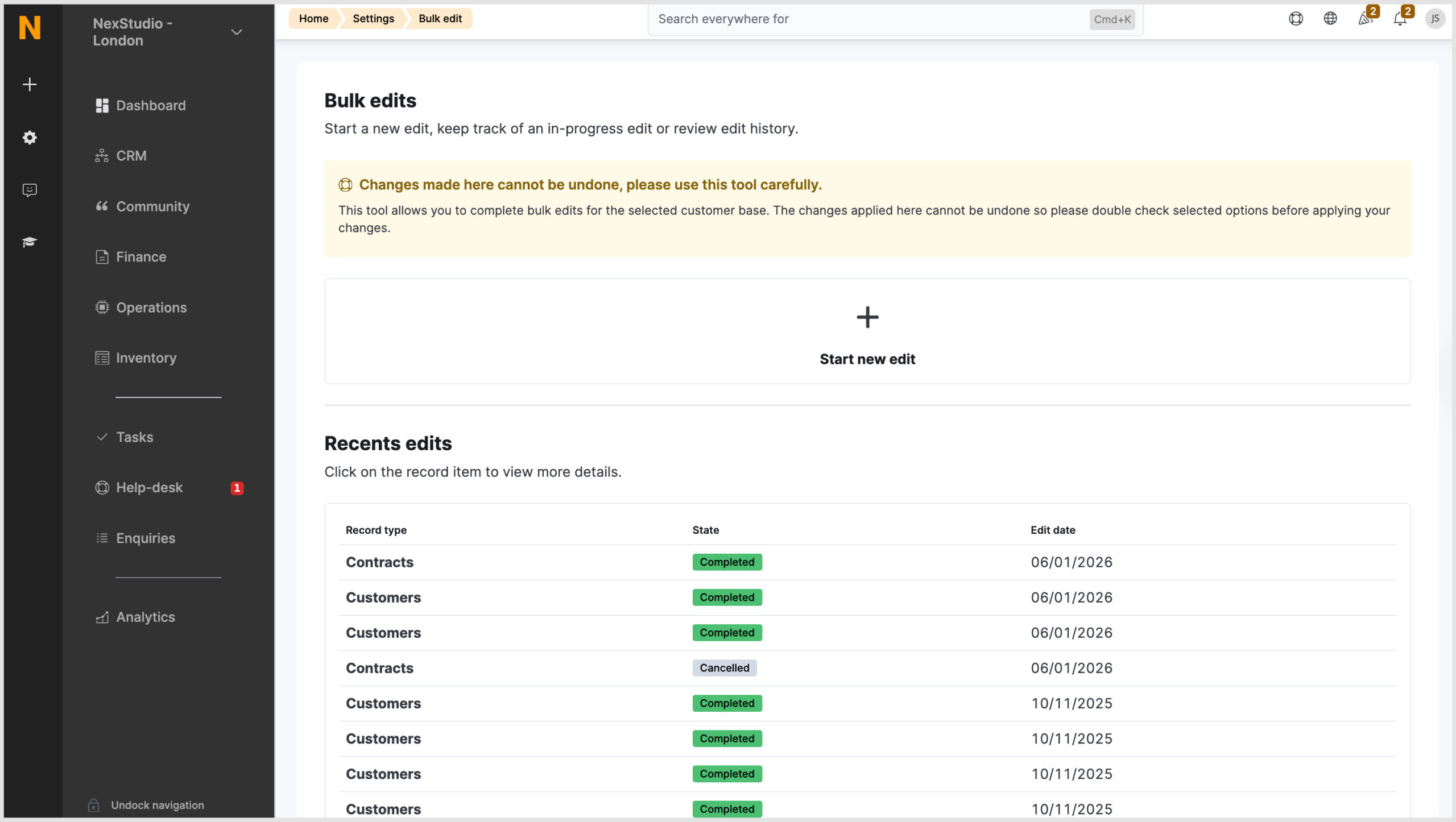
- Go to Settings>Bulk Edits.
- Review the warning message: “Changes made here cannot be undone, please use this tool carefully.”
- Click ‘Start the Edit’.
- Choose whether you want to edit Customers or Contracts.
Bulk editing customer records
- Select Customers from the dropdown.
- Apply filters to define which customer records to edit (e.g. All Customers, Members only, Contacts only).
- Review the record summary, which shows: Record type and selection, Location, and Total number of records affected (Suspended customers in the example below).
- Click ‘Continue to editing’.
- Choose the settings you want to update, such as:
- Access
- Notifications
- Payments
- Printing
- Professional Profile
- Square
- For each setting, you can select one of these actions: Do not change, Enable or Disable.
- Click ‘Edit X Records’ to proceed.
- The edit runs in the background, allowing you to continue other tasks.
- Once complete, you can review the applied changes or any highlighted errors.
Bulk editing contract records
- Select Contracts from the dropdown.
- Apply filters (e.g. All Contracts, Starting Contracts, Cancelled Contracts).
- Review the record summary, including how many contracts will be impacted.
- Click ‘Continue to editing’.
- Choose from available update options, including:
- Update start date
- Update the next invoice date
- Update cancellation date
- Update the next plan
- Update price
- Each option provides additional sub-options. For example, when updating the next invoice date, you can:
- Select a specific date
- Add a number of days
- Remove the next invoice date to pause the contract(s).
- When editing the Price, it is important to note that:
- Fixed-price contracts will not be updated via bulk edit. To update pricing for these, modify the plan price directly or disable fixed pricing in the contract settings.
- Price changes affect the plan price only, not plan components.
- Click ‘Edit X Records’ to apply changes.
- Once complete, review results or any highlighted errors.
Bulk Edit status
Similar to Bulk import, you can view up to 10 recent imports, with statuses including Completed, In Progress, Cancelled and Failed.
Want to know more about
how Nexudus could help your business?
We’re here to answer any questions you have.