

Recurring bookings

We’re excited to roll out a much-requested feature in the Nexudus Members Portal – Recurring Bookings!
Members can now easily set up bookings that repeat on a schedule, whether it’s daily, weekly, or monthly, without having to make each booking manually, saving time and simplifying regular bookings.
Admin Panel
Let’s first look at how to enable this feature in the Admin Panel.
To enable repeat bookings for a specific resource, go to Inventory > Resources > Limits > Requests and cancellations > Repeat bookings.
By default, the setting is: “This resource doesn’t allow repeat bookings for customers.”
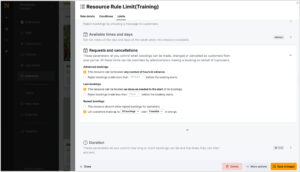
To enable the feature, select: “Let customers make up to XX bookings over XX months in one go.” This means you can control how many bookings members are allowed to create at once and how far into the future they can schedule them.
Note: The maximum number of bookings allowed is 150. If you exceed this, an error message will appear.
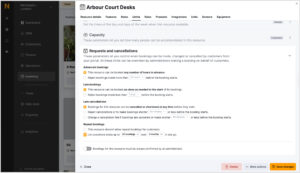
You can also access and configure this setting under: Resources > Rules > [Select Rule] > Limits > Requests and cancellations > Repeat bookings.
Members Portal
Now, let’s move to the Members Portal and see how your customers can place a recurring booking.
If repeat bookings are enabled for a resource, your members will see a Repeat option when they make a booking. If it isn’t enabled, the Repeat option won’t be visible.
Below are some different customer scenarios:
Scenario 1: One-Time Visit – Useful when a member only needs a space for a one-off visit.
- Choose: “Does not repeat”
- Click Confirm booking to complete.
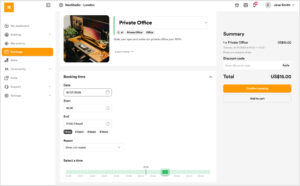
Scenario 2: Every Workday – This option is ideal for members who want access to a space every workday, for example, Monday to Friday, over several weeks.
- Choose: “Repeat every workday”
- Set the Repeat until date.
A note will appear showing your booking limit, e.g., “You can make up to 30 bookings for dates up to 14/10/2025.”
(This reflects the Admin Panel’s limit settings.)
Scenario 3: Every Week on Monday – This is perfect for weekly recurring meetings or check-ins.
If the first booking date falls on a Monday, they’ll see the option: “Repeat every week on Monday.”
This label dynamically changes based on the day selected for the first booking – for example, if Wednesday is chosen, it will say “Repeat every week on Wednesday.”
- Choose: “Repeat every Monday”
- Set the Repeat until date for the series.
Note: If the selected Repeat until date doesn’t fall on the same weekday as the recurring pattern (e.g., it falls on a Thursday but the booking is repeating every Monday), the system will automatically schedule the final booking on the last available Monday before that date.
Scenario 4: Custom – This option is best for members with less conventional schedules or long-term recurring needs, as it provides maximum flexibility.
There are two ways to create custom recurring bookings:
- Weekly Repeat on Specific Days
- Choose any combination of days (e.g., Monday, Tuesday, Thursday)
- Set the Repeat until date for the series
- The system will create weekly bookings on those selected days
- Monthly Repeat
- The booking will repeat monthly on the same day (e.g., 15th of each month)
- The number of bookings will still be limited based on the settings in the Admin Panel
- Bookings are still subject to the admin-defined limit, e.g., if the limit allows repeat booking for 3 months, only 3 monthly bookings will be made.
Additional Notes to highlight:
- Bookings ending on a non-workday: If a member selects a “Repeat until” date that falls on a weekend or a non-working day, the system will automatically adjust the final booking to the nearest previous workday. For example, in the scenario below, the member has selected 19/07/2025 as the “Repeat until” date, which falls on a Saturday. When the booking is confirmed, the system sets the last booking date to 18/07/2025, which is the preceding Friday, the last valid workday.
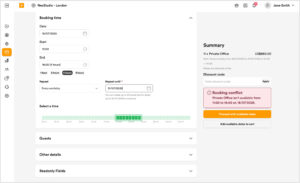
- Booking Conflicts: If any time slots in a recurring series are already booked or unavailable, the member will receive a conflict message. They can then adjust the schedule or remove conflicting instances by proceeding with the available dates.
- Managing Existing Recurring Bookings:
To remove one or all bookings in a repeat series, they can use the remove option from their booking list.
To edit one or multiple bookings in the series, they can use the edit option from their booking list. They’ll be taken to the booking page where changes can be made before confirming.
Want to know more about
how Nexudus could help your business?
We’re here to answer any questions you have.