

NexBoard v2.0

NexBoard, the Nexudus companion app, turns any tablet placed outside a resource into an interactive room display where your customers can view availability, make bookings, and check in on the spot.
This latest release (v 2.0) introduces a major redesign, offering a cleaner, more intuitive interface and a completely refreshed experience. Along with the new look and feel, NexBoard now allows your customers to extend ongoing bookings, end bookings early, and make payments using a QR code from the tablet, making the booking process faster and more self-service friendly.
NexBoard is included in your standard Nexudus subscription. Click here to follow the steps for setting up NexBoard.
What’s new in NexBoard
Improved Booking Experience
The booking interface has been redesigned for clarity and ease of use.
- On the tablet outside the resource you wish to book, you can view the key details (For example: Wi-Fi, conference phone, natural light, refreshments availability, etc.).
- Tap Book to choose a time.
- Use Quick Book to select the next available slot (30 min, 1 hour, 2 hours).
- Or choose a specific date and time manually.
Important to Note: Bookings cannot be made across multiple days from NexBoard. Overnight / multi-day booking spans will not be shown.
Resources with Units
For resources that have multiple units, you can either link NexBoard to a specific unit, so all bookings and information shown relate only to that unit, or leave it unlinked, allowing customers to choose a unit when booking. Units can be selected from either a floor plan view or a dropdown menu.
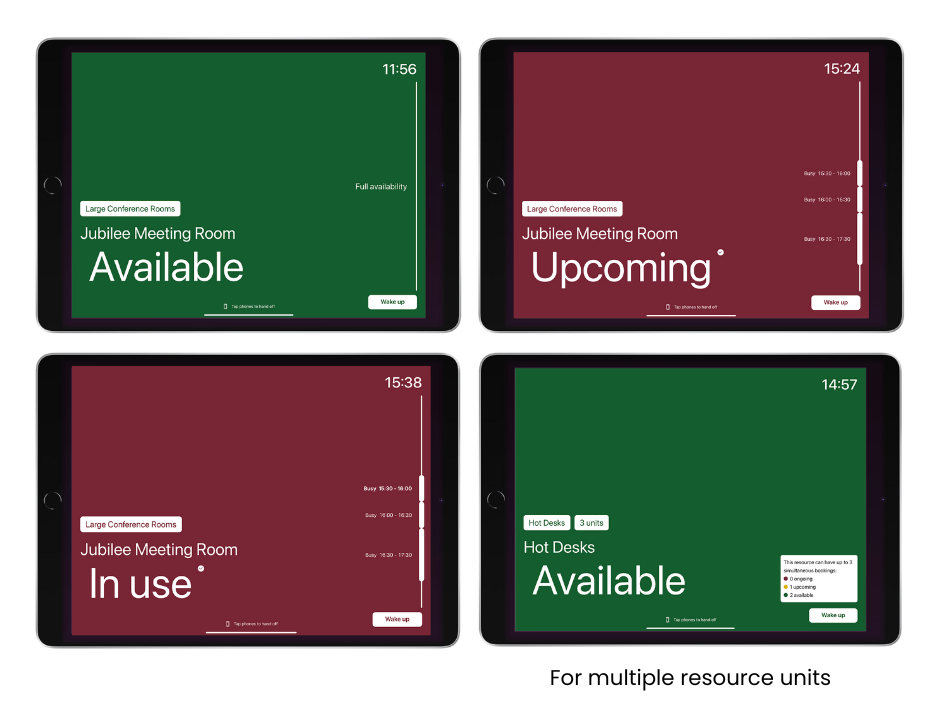
If the screen is left idle for a minute, NexBoard shows a screensaver-style availability view displaying:
- Resource status: Available, Upcoming, or In Use
- Upcoming bookings and schedules
Tap Wake Up to return to the main booking screen.
Authentication Process
For actions such as placing or extending bookings, users must authenticate their identity. They can do this by:
- Scanning their member QR code
- Logging in with their credentials
- Alternatively, you can tap your phone with the Passport app to continue the booking process in your Passport app.
Pay Upfront for Bookings
If a booking requires upfront payment, the user will see a QR code on the screen after making a booking. Simply scan the code on a mobile phone to complete the payment.
Check in to a Booking
Users can check in directly from the tablet up to 15 minutes before their booking starts. To check in:
- Tap Wake Up
- Click on Check In
- Choose your booking
- Confirm Check-in
All bookings placed within 15 minutes of the start time will be automatically checked in.
Extend a Booking
If the resource is available after the current booking ends, users will see the option to extend. To extend the current booking:
- Tap Extend Booking
- Select the booking
- Choose how long to extend (e.g., 15 min / 30 min)
- Confirm
If another booking begins immediately after, the extend option will not appear.
End a Booking Early
Users can also release the room before their booking ends.
- Tap End Current
- Select the booking
- Confirm
When a booking is ended early, the user receives an email containing a confirmation link.
Clicking this link takes the user to their Members Portal dashboard, where the booking will appear with the updated end time. The revised details will also be reflected in NexBoard shortly afterwards.
Please note: Ending a booking early does not change the original booking charges or issue any refunds. It simply releases the resource so it can be used by others.
Want to know more about
how Nexudus could help your business?
We’re here to answer any questions you have.