

eInvoicing and eReporting

To facilitate eInvoicing and eReporting, we now have an eInvoicing which will help with the processing and handling of eInvoices and eReporting and assist you in being compliant within your country.
What is eInvoicing?
Very simply put, it is the digital exchange of invoice information in a structured, machine-readable format between financial systems.
Within the EU, regulations are coming into force in 2030 that state there is a specific format and structure that needs to be followed in order for it to be classified as eInvoicing. However, some countries within the EU are putting in their own mandates to ensure their citizens can comply with the EU regulations. Some of which have an enforcement date of 1st January 2026. Countries outside of the EU are also starting to mandate eInvoicing.
What is eReporting?
eReporting is the submission of business data such as tax or invoice information, directly to a government authority or regulatory body. This means the government authorities can see exactly the amount both you and the party are receiving and ensure the correct amount of tax is being collected. This isn’t mandated by all countries but we are seeing a shift towards it.
Enabling eInvoicing on the Admin Panel
- Settings > Integrations > eInvoicing.
- Toggle on Enable eInvoicing.
- Click Save changes.
- Enter the legal and fiscal identifiers
- These are required to register yourself as being able to send eInvoices.
- The legal and fiscal identifiers vary from country to country, however, a VAT number is a common identifier.
- Click Save changes.
- At this point, the legal entity is created in the system for eInvoicing. Once a legal entity has been created, you cannot update the country of the legal entity. You can, however, update the other information by clicking Update legal entity.
- If applicable, toggle on Automatically generate and send einvoicing documents for all invoices issued and click Save changes.
This will need to be done in each location within a network as each location needs to have it’s own legal entity in the system. In some cases, these may be the same fiscal entity (same address, same identifiers etc). In other cases, there may be different locations within a network that are operating in more than one jurisdiction with different fiscal entities.
Spaces located in Spain will need to add their Province to their billing address information on the Admin Panel. The Province is a requirement for Verifactu, an electronic invoice verification system developed by the Spanish Tax Agency. Without this information, the system won’t be able to process the eInvoicing request.
Members Portal changes
End-users will also need to input information on the Members Portal.
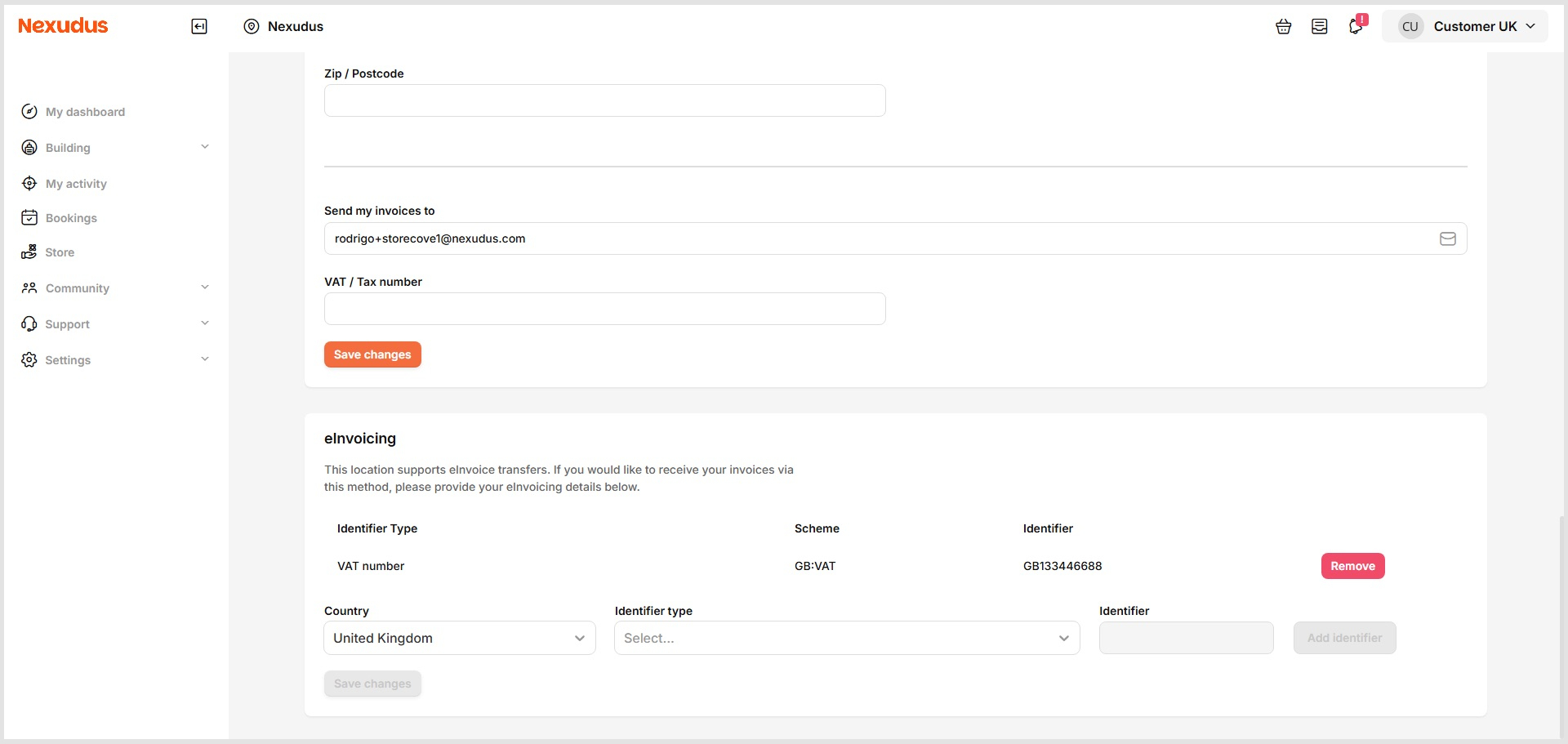
In Billing > Payment details, there will be an eInvoicing section at the bottom.
The end users will need to enter their identifiers and click Save changes. The information required may differ between a sender (space operators) and a receiver (the space’s customers).
If there are no identifiers for the end user, they can specify an email address. By default, if there are no identifiers entered on the profile, the billing email address will be used and a copy of the eInvoice will be emailed. Remember that eInvoices are formatted in a machine-readable format so they will not make any sense.
When identifiers are entered, the eInvoice will be delivered to the end-users accounting software assuming they are registered with an eInvoice delivery network like PEPPOL.
Generating an eInvoice from the Admin Panel
When the eInvoicing integration is enabled, there will be a Generate eInvoicing document option in the More actions menu of an invoice. As the integration processes the invoice, it will check that the invoice contains all the relevant information and that the tax rates are correct for the billing country of the location. Once that information has been verified, the invoice will be sent to the receiver and, if applicable, the relevant government authority.
Just like with other invoices, the status of the invoice will be reflected in the Admin Panel.
When an eInvoice has been generated, it cannot simply be deleted. If you need to delete an unpaid eInvoice, you should generate a credit note like normal within the Admin Panel. Then click Generate eInvoicing document on the credit note within the Admin Panel.
Each country/jurisdiction has it own laws in place all of which have slightly different requirements. At Nexudus, we can help with the general setup of the integration but it is your responsibility to be familiar with the laws of the region you operate in.
Want to know more about
how Nexudus could help your business?
We’re here to answer any questions you have.